콘텐츠로 건너뛰기
🖥️ Tech Bonus Sale | Up to 50% Off
South Korea
장바구니
측면 터치

32인치 4K UHD 도킹 모니터

Mac 및 Windows용 직관적인 터치 스크린

Aspekt Touch의 정밀한 10포인트 터치 스크린을 사용하여 완전히 새로운 방식으로 컴퓨터를 탐색하세요. Mac을 사용하든 Windows를 사용하든 Aspekt를 사용하면 휴대전화나 태블릿에서 이미 즐겨 사용하는 모든 멀티터치 단축키를 탭하고, 핀치하고, 스와이프하고 사용할 수 있습니다.

Aspekt 32 터치 이미지
Aspekt 32 터치 이미지

디지털 크리에이티브를 위한 정밀 터치스크린

우리와 짝을 이룰 때 ALOGIC Active Stylus의 4096단계 압력 감도, Aspekt Touch는 프레젠테이션에서 청사진에 이르기까지 문서 스케치, 페인팅 또는 마크업에 이상적인 32인치 스케치패드로 변환됩니다.

Aspekt 32 터치 디지털 Aspekt 32 터치 디지털

16:9

종횡비

3840x2160

해상도

137PPI

픽셀 밀도

400니트

밝기

1000:1

명암비

14ms

응답 시간
Aspekt 32 Touch Zebra 32 접이식 스탠드

사용자 정의 가능한 Mac 제스처

Mac과 페어링하면 강력한 Clarity Touch 드라이버를 사용하여 맞춤형 멀티 터치 단축키를 만들 수 있습니다. 세 손가락 탭으로 Teams에서 자신을 음소거하거나 Photoshop에서 위로 살짝 밀어 새 레이어를 만들어 창의적인 작업 흐름을 간소화하세요.

믿을 수 있는 색상

사진가, 비디오그래퍼, 일러스트레이터 및 디자이너의 요구를 충족하도록 설계된 Aspekt의 화면은 평균 Delta E를 갖춘 강력한 색 영역 범위(100% sRGB, 95% DCI-P3)를 자랑합니다. < 2로 디지털이나 인쇄에 일관되게 사실적인 다양한 색상을 제공합니다.

애스펙트 32 터치
얼룩말 White0006
지속 가능한 알루미늄

지속 가능한 알루미늄

진정한 도킹 모니터

알루미늄 프레임 안에 숨겨진 전체 도킹 스테이션을 갖춘 Aspekt는 단일 USB-C 연결을 통해 컴퓨터를 두 번째 모니터(데이지 체인), 90W 노트북 충전, 55W 액세서리 충전, 빠르고 안전한 이더넷 및 최대 4개의 USB-C 및 USB-A 액세서리에 연결합니다.

비디오 포트

아이콘 1
HDMI
아이콘 2
디스플레이포트
(에서)
아이콘 2
디스플레이포트
(데이지 체인)
아이콘 3
USB-C

액세서리 포트

아이콘 4
USB-C 2개
아이콘 5
USB-A 2개
아이콘 6
RJ45 이더넷
아이콘 7
3.5mm 오디오
아이콘 8
2x 켄싱턴
보안 슬롯
Aspekt 32 터치 도킹 모니터
Aspekt 32 터치 Zebra USB0047

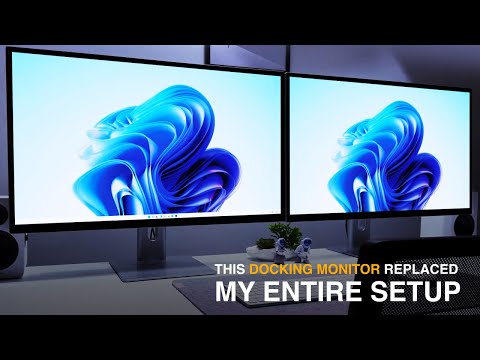
모니터 2개, 케이블 1개

Aspekt는 Windows 컴퓨터의 데이지 체인 지원 덕분에 더욱 깔끔한 책상을 구축할 수 있도록 해줍니다. 여러 비디오 케이블을 컴퓨터에 연결하거나 듀얼 디스플레이 도크에 투자하는 대신 USB-C 또는 DisplayPort를 통해 Windows 컴퓨터를 Aspekt에 연결하기만 하면 DisplayPort를 통해 추가 4K 디스플레이 하나 또는 2x QHD 디스플레이에 Aspekt를 직접 연결할 수 있습니다.

아이콘 1 아이콘 2

접근 가능한 액세서리

Aspekt에는 일상적인 액세스를 위해 측면에 USB 포트가 내장되어 있으며, 장기간 액세서리를 사용할 수 있도록 모니터 뒤에 또 다른 두 개의 포트가 숨겨져 있습니다.

Aspekt 32 터치 액세서리
Aspekt 32 터치 충전 모니터

세계 최초의 145W 충전 모니터

사무실의 핵심인 Aspekt는 도킹 스테이션의 역할을 할 뿐만 아니라 145W USB 충전 스테이션으로도 기능하여 노트북용 90W 충전, 태블릿용 30W USB-C 충전, 휴대폰 충전 15W USB-C, 스타일러스, AirPods 또는 웹캠과 같은 저전력 액세서리용 2x5W USB-A 충전 기능을 제공합니다.

완벽하게 연마

Aspekt의 제작된 알루미늄 본체는 화면의 이미지만큼이나 깊은 인상을 줍니다. 스페이스 그레이 또는 실버 색상으로 제공되는 Aspekt는 미니멀하고 소재 지향적인 디자인으로 MacBook 또는 Mac Mini를 보완하도록 설계되었습니다.

인체공학을 선택하세요

스탠드 올리기
스탠드 올리기
접이식 스탠드
접이식 스탠드
옴니 2-in-1
옴니 2-in-1
스탠드 올리기

인체공학적 높이

세로 방향으로 회전

완전히 조정 가능

접이식 스탠드

하이브리드 접이식 스탠드

그리기에 딱 맞습니다

마그네틱 케이블 가이드

옴니 2-in-1

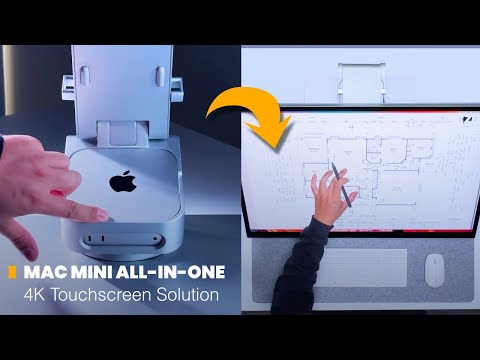
M4 Mac 미니 마운트

하이브리드 접이식 스탠드

그리기에 딱 맞습니다

Frequently Asked Questions

General

Which monitor stand is best for Aspekt Touch?
The best monitor stand for Aspekt Touch depends on how you intend to use it.

The Aspekt Raise Stand offers greater height and tilt/swivel adjustment, making it more comfortable for ‘regular’ monitor use with occasional, short periods of touchscreen use – such as scrolling a webpage or switching windows.

The Aspekt Fold Stand is a must-have if you intend to use Aspekt with a stylus for a significant period of time, as it’s fold-down mode will be vastly more comfortable and make the stylus easier to control. Its ‘upright’ mode also positions the monitor closer to you at a lower height than the Raise Stand, making extended touch use more comfortable.

The Omni 2-in-1 Hybrid Fold Stand for Aspekt and M4 Mac Mini does not alter the ergonomics of the fold stand at all, and merely offers a tidy way to save desk space by housing your M4 Mac Mini.
How big is Aspekt Touch?
A 32” Aspekt Monitor measures 730mm wide, 430mm tall and is about 60mm thick, without a stand attached.
Can I use Aspekt Touch with other monitor arms or wall mounts?
Yes – Aspekt can be used with any VESA 100x100mm compatible mounting solution that can support a 9kg monitor.
What’s the difference between Aspekt Touch and Clarity Max Touch?
Aspekt Touch has many similarities to Clarity Max Touch – they share all the same size, screen resolution, and touchscreen features – however there are important differences you should know about before purchasing.
  1. Aspekt monitors feature a more advanced USB-C dock than Clarity Max Touch, offering 30W faster laptop charging, two extra USB-C ports for accessories, daisy chaining and an Ethernet connection.
  2. Aspekt Touch allows you to choose which stand you want to use, while Clarity models have a set stand.
  3. Aspekt monitors have a matt finish that diffuses reflections, while Clarity monitors have a gloss finish.
  4. Clarity monitors are a little more colour accurate than Aspekt monitors, with an Avg. Delta E <1, as opposed to Aspekt’s <2.
  5. Clarity monitors have an ABS plastic frame, while Aspekt monitors use acrylic and aluminium.
  6. Clarity Max Monitors use a VA panel, which provides a bit more contrast but doesn’t have the wider viewing angles of Aspekt’s IPS panel.
Does Aspekt have a webcam?
No. If you require a monitor-mounted webcam, we suggest using the Illuminate Light Bar with 4K Webcam with Aspekt
Should I connect to Aspekt with USB-C, HDMI or DisplayPort?
If your computer supports video over USB-C (with DP Alt Mode) or has a Thunderbolt 3/4/5 port, we recommend using USB-C to connect to your Aspekt monitor, so that you can get video, laptop charging and access to Aspekt’s Ethernet and USB accessory ports, all over the one cable.

If your device doesn’t support USB-C video transfer, we suggest using a DisplayPort cable, as Aspekt’s HDMI ports do not have the bandwidth to support Daisy Chaining.
How can I connect accessories to Aspekt?
In order to use Aspekt’s Ethernet or USB accessory ports, simply connect your accessory to Aspekt, and connect your computer to Aspekt’s USB-C video port.
How do I charge my laptop with Aspekt?
Simply use the included USB-C cable to connect Aspekt’s USB-C Video port to a Thunderbolt 3/4/5 or USB-C PD (Power Delivery) compatible port on your laptop to charge it.

If you’re unsure which of your laptop’s USB-C ports support USB PD, we suggest consulting the user manual or its manufacturer’s website.
Does Aspekt work with Mac and Windows?
Yes – Aspekt’s display, USB-C charging and touchscreen functions work the same on Mac and Windows.

However, Aspekt’s daisy chaining technology isn’t fully supported by Macs – meaning that while you can connect an additional 4K display to to Aspekt, it will show the same picture as Aspekt is (mirrored mode).
Does Aspekt support daisy chaining?
Yes – Aspekt supports Daisy Chaining output over DisplayPort, when connected to a computer via USB-C or DisplayPort.

On Windows, Aspekt can extend your computer’s display to 1x additional 4K display, up to 2x additional QHD displays or 3x additional FHD displays connected in a daisy chain.

On Mac, Aspekt can mirror itself to one additional 4K/QHD/FHD display – this means that this monitor will show the exact same image as Aspekt is showing. In most cases, Mac users should connect to additional monitors directly, or using a Dual Display dock instead.
The daisy chaining isn’t working!
If Aspekt’s daisy chaining isn’t working for you, please ensure:
  1. You’re connecting over DisplayPort or USB-C.
  2. You’re using the correct DisplayPort to connect to the Daisy Chained monitor. Consult the user manual for more information.
  3. The “DP Output Mirror” setting in Aspekt’s “System” submenu is set to “off” if you’ve got a Windows computer connected, or “On” if you have a Mac.
  4. If these steps don’t help, contact us at support@alogic.co.
Does Aspekt support automatic source switching based on input (KVM)?
No. While Aspekt will automatically switch to the only active video source, it can’t switch between two active video inputs based on which has current activity with an external switcher, like a KVM.
My ports aren’t working!
If Aspekt’s accessory ports aren’t working, check the “USB Dock” option in the “System” menu is set to “On”.
Can this monitor be used with the Clarity Fold Stand?
No, the Clarity Fold Stand cannot be used with our Aspekt Monitors, which require our new Aspekt Fold Stand.

Display

Does Aspekt support HDR?
Yes, Aspekt monitors support HDR400.
Does Aspekt have a picture-in-picture mode?
Yes, Aspekt can be set to show two video sources at once via its on-screen menu.
Which colour gamuts is Aspekt calibrated for?
Aspekt includes pre-calibrated sRGB, Adobe RGB, DCI-P3 and NTSC colour modes.
How can I calibrate Aspekt’s colours?
Aspekt has no inbuilt colour calibration functionality. If you wish to calibrate Aspekt, we recommend using a third-party calibration tool such as a Calibrite.
Is Aspekt’s Matt or Gloss a better finish?
While Aspekt’s gloss finish can offer a slightly brighter, with slightly more vibrant colours in rooms with darker, controlled lighting, we think its matt finish will suit most users better, owing to its substantially reduced reflections from overhead lights or windows.

Touch

What styluses can I use with Aspekt Touch?
Aspekt Touch is compatible with any Microsoft Pen Protocol (MPP) 2.0 active stylus, such as our ALOGIC Active Stylus (Product Code: ALASS2).
How do I open the touch OSD?
To open Aspekt’s settings menu with touch, swipe inwards from the bottom right corner with two fingers.

You can enable or disable this feature by switching “Touch OSD” in the “System” menu to “off”.
Touch isn’t working!
If touch isn’t working, ensure you’ve:
  1. Connected your computer to Aspekt with a USB-C cable.
  2. In the “System” submenu of Aspekt’s OSD, ensure “Touch OSD” is set to “On”.
  3. If you’re on a Mac, ensure you’ve installed our Touch macOS drivers.
  4. If these steps don’t help, contact us at support@alogic.co
Does Aspekt Touch support tilt and pressure sensitivity?
Yes – when used with a compatible with Microsoft Pen Protocol (MPP) 2.0 Styluses – such as our ALOGIC Active Stylus (Product Code: ALASS2), which offers 4096 levels of pressure sensitivity.
(macOS) I can’t get touch gestures, or a stylus to work!
To unlock the full capabilities of Aspekt Touch for Mac, you need to install our Touch macOS drivers.
(macOS) My touch input is controlling the wrong screen!
After installing our Touch Drivers for macOS, click on the “UPDD Daemon” icon in your top bar, then select “Identify” and follow the on-screen instructions
(Windows 10/11) My touch input is controlling the wrong screen!
Sometimes, Aspekt Touch’s input will be applied by your computer to another display instead of Aspekt Touch.

Moving your mouse onto Aspekt before using the touchscreen usually resolves this issue.

Solution - Windows
If you’re using Windows 10 or 11 with multiple displays you can specify which monitor you want touch input to apply to, which saves you having to mouse over to that display before using touch.

To do this, launch Control Panel, click “Hardware and Sound” then ‘Calibrate the screen for pen or touch input’ from the menu.


Select “Setup”, choosing “Pen Input” if you’re using an active stylus or “Touch Input” if you’re using your fingers or a capacitive stylus, then follow the onscreen instructions.

If completing this process doesn’t resolve your issue, try setting up for the other kind of input.