콘텐츠로 건너뛰기
🖥️ Tech Bonus Sale | Up to 50% Off
South Korea
장바구니
보고 또 보이세요
당신의 세상을 밝히세요

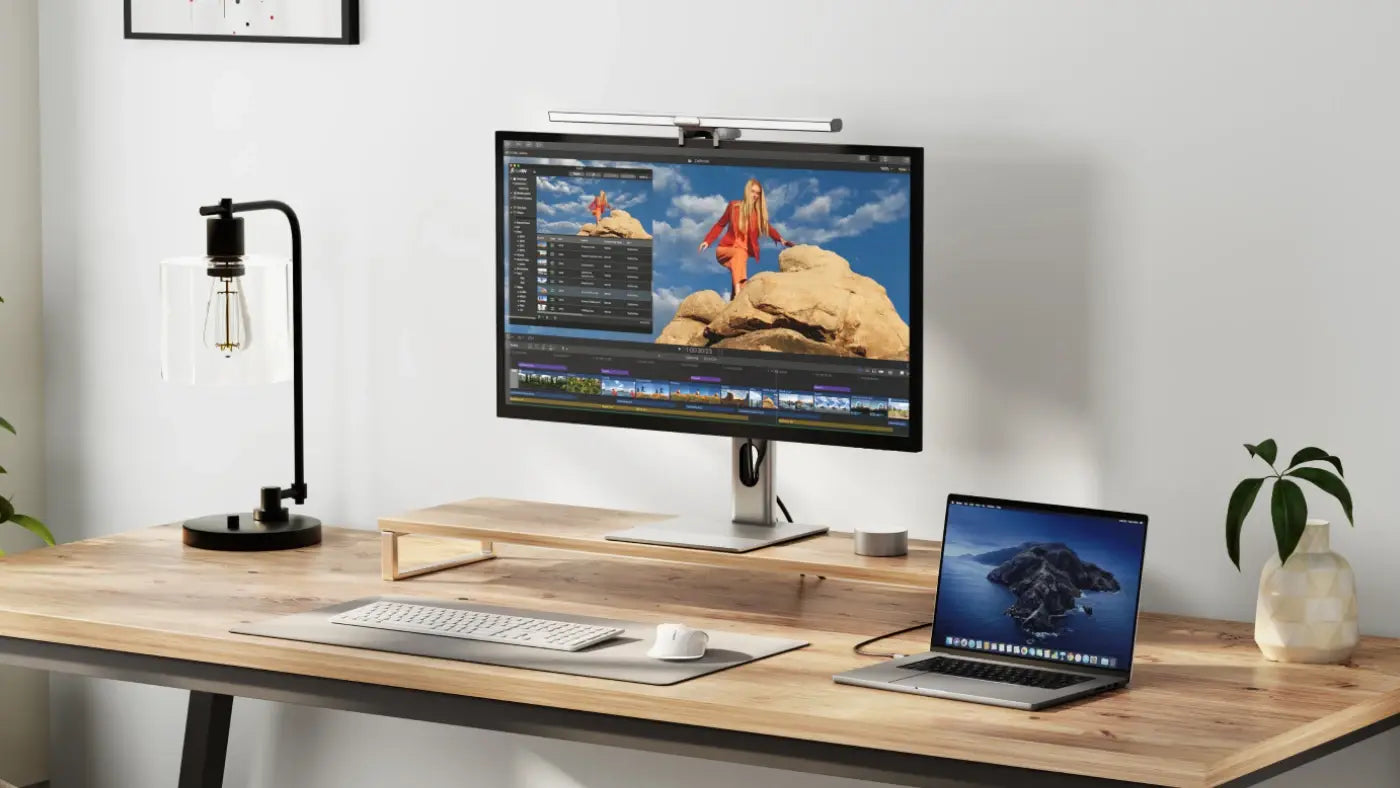
완전히 조정 가능한 Illuminate를 사용하면 작업 공간을 제어할 수 있습니다 원치 않는 눈부심을 추가하지 않는 따뜻한 조명 또는 중성 조명 사용 컴퓨터 화면에.

손끝에서 제어
터치로 조정

직관적인 터치 컨트롤을 통해 Illuminate를 빠르고 쉽게 조정할 수 있습니다. 밝기와 색온도.

완벽함을 추구하다

Illuminate를 사용하여 스와이프하여 조명을 조정하세요. 스냅온 자기 원격 제어 다이얼.

당신의 4K 글로우 업

아직도 노트북의 로우앵글 웹캠을 화상 통화에 사용하고 계시다면, 당신은 더 나은 것을 시도해야 할 의무가 있습니다. Mac 및 Windows와 완벽하게 호환되며, 일루미네이트의 광각 12MP(4K) 자동 초점 웹캠은 회의, 스트리밍 및 비디오 녹화에 적합합니다.

스냅온 개인정보 보호

통화가 끝나면 Illuminate의 자석 프라이버시 커버를 끼우기만 하면 됩니다. 마음의 평화를 위해 웹캠을 통해. 또한 Illuminate의 밝은 상태 LED는 공유할 때 쉽게 알 수 있습니다.

간편한 설정 및 조정
터치로 기울이기

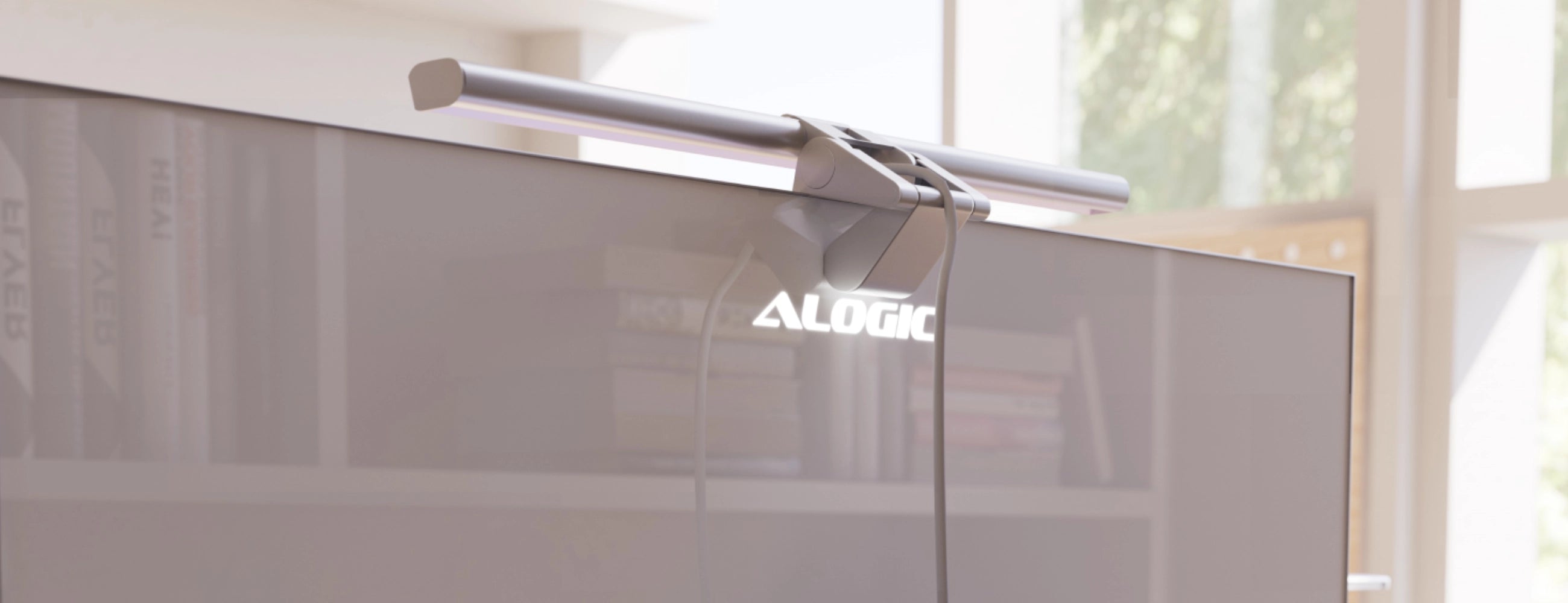
Illuminate의 유연한 마운트를 사용하면 카메라를 기울여 각도를 조정할 수 있습니다. 빛.

단 몇 초 만에 마운트

마운트를 펼쳐서 모니터 위에 놓고 밀어서 고정하면 됩니다.

미끄럼 방지 고무

모니터가 긁히지 않고 Illuminate가 제자리에 유지되도록 보장합니다.

엣지용으로 설계됨

Illuminate 라이트 바는 두께가 8~30mm인 모든 모니터에서 작동하지만 Edge 울트라와이드 모니터와 색상이 일치하여 Edge의 USB-C 포트를 통해 전원이 공급되는 완벽한 각도의 4K 웹캠을 제공합니다.

하나의 케이블로 연결

Illuminate를 컴퓨터나 모니터의 USB-C 포트에 연결하기만 하면 됩니다. 좋아요.
Frequently Asked Questions

General

What colour temperatures can I set Illuminate’s Light Bar to?
Illuminate’s light bar can be adjusted between a warm 2,800K and a more neutral 6,500K. Using the remote control, you can dial into your preferred temperature between these values, while by tapping the Colour Temperature button on the lightbar itself, you can quickly switch between three presets: 1. 2,800K (Warm) 2. 4,500K (Balanced) 3. 6,500K (Neutral)
Illuminate is ‘Designed for Edge’. Does it still work with other monitors?
Absolutely. Illuminate can be used with any monitor that is between 8-30mm thick at the top and has an available USB-A or USB-C port that can supply 5V (5V/1A) of power and supports USB 2.0 (or newer) data transfer.
Can I use Illuminate with USB-A ports, or just USB-C?
Illuminate can be used with either a USB-A or USB-C port, as long as it supports 5V (5V/1A) of power and USB 2.0 (or newer) data transfer.

We recommend consulting the product’s user manual, or the manufacturer’s website to make sure your port supports Illuminate before purchase.

Illuminate does not include a USB-C to USB-A cable, but is compatible with USB-C to USB-A adapters (such as the Ultra USB-A to USB-C Mini Adapter ) or any USB-C to USB-A cables.
Does the webcam with work Microsoft Teams/Slack/Zoom?
Illuminate’s webcam is compatible with all programs that work with standard laptop or USB-C webcams, including all popular video conference platforms.
Does this camera support Windows Hello?
No, Illuminate cannot be used with Windows Hello or other infrared (IR) camera authentication systems.

Troubleshooting

My webcam looks blurry, with a blue tint!
If Illuminate’s webcam looks blurry, or seems to have a blue tint to it, you may not have removed the protective film. Check your webcam – there should be a little tab you can pull off. If there isn’t a tab, look closely at the camera and try rubbing one of the sides to see if there’s still a plastic film – sometimes the pull tab can get stuck inside the camera itself.

If you’re sure there’s no film and your camera remains either blurry or blue-tinted, please get in touch with our support team: support.au@alogic.co
My light bar is turning off at maximum brightness!
If Illuminate is turning off when it hits max brightness, this indicates Illuminate is not receiving enough power.

Ensure the port can supply at least 5W of power – not all laptop or computer monitor ports support this. We recommend consulting the product’s user manual, or the manufacturer’s website.
My webcam isn’t working!
If Illuminate’s webcam “Alogic Illuminate Webcam” does not appear in the list of connected cameras, ensure the USB port you’ve connected Illuminate to supports USB 2 data.

We recommend consulting the product’s user manual, or the manufacturer’s website to double check the ports support USB 2.0 data transfer.
The remote control isn’t responding!
If your remote dial is unresponsive, tap and hold both ‘buttons’ on the remote for a second to wake it up out of standby mode.

If the remote still doesn’t respond, try leaving it to charge for an hour. If this does work, please contact support.au@alogic.co and we’ll help you get things sorted.