

 South Korea
 USA
USA Canada
 Australia
 UK
UK Europe
 New Zealand
 Japan
Japan Singapore
 UAE
UAE India
IndiaEchelon USB-C Rechargeable Wireless Mouse


Echelon USB-C Rechargeable Wireless Mouse
Echelon USB-C Rechargeable Wireless Mouse
Couldn't load pickup availability
Specifications
Specifications
Downloads
Downloads

"The low-cost Echelon Wireless Mouse from Alogic is super lightweight and makes for a great travel mouse."

"Alogic's Echelon Series Delivers Budget-Friendly Keyboard and Mouse Accessories"

ÒThe new Echelon keyboard and mouse are affordable alternatives to Apple's Magic Keyboard and mouse.Ó

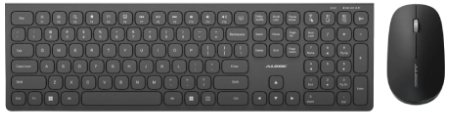
"AlogicÕs new Echelon keyboard and mouse make a dynamic duo."


Echelon’s low-profile curves were designed to sit comfortably in your hand over long periods of use, then slip neatly into your pocket or bag for transport to your next meeting.


With a clean, understated design, the Echelon Wireless Mouse looks great on any desk, offering a whisper-quiet click that wonÕt annoy your co-workers.
Echelon makes multitasking easy, with a button to quickly switch between a paired Bluetooth device and one connected with its 2.4Ghz USB-A dongle, such as your MacBook and iPad.


Thanks to our innovative USB-C port placement, Echelon can even be used while it's recharging.

USB TYPE C

Battery Lasts Weeks



General
Troubleshooting
1. Press and hold FN + the Bluetooth 1 or 2 keys (Copy and Paste above the Numpad) until the connection light begins flashing green.
2. From your device’s Bluetooth menu, pair with ALG_KEYBOARD.
Wireless Mouse:
1. Hold the connection button for 3 seconds, until the light begins flashing.
2. Pair with “ALG_MOUSE” in your device’s Bluetooth menu.
1. Remove the USB dongle from the underside of your mouse and plug it into your computer.
2. Turn on your keyboard.
3. Hold the “FN” and 2.4GHz button (Select All above the numpad) down for a few seconds until the connection light begins flashing. Once it stops flashing, your keyboard is connected.
4. If it doesn’t stop flashing after 10 seconds, remove the USB dongle from your device and plug it back in. They keyboard should now connect.
Wireless Mouse:
1. Connect the 2.4GHz dongle to your device.
2. Hold the connection button on the underside of your mouse for 3 seconds.