

 South Korea
 USA
USA Canada
 Australia
 UK
UK Europe
 New Zealand
 Japan
Japan Singapore
 UAE
UAE India
India145W USB 충전 기능을 갖춘 Aspekt 32인치 4K UHD 도킹 모니터


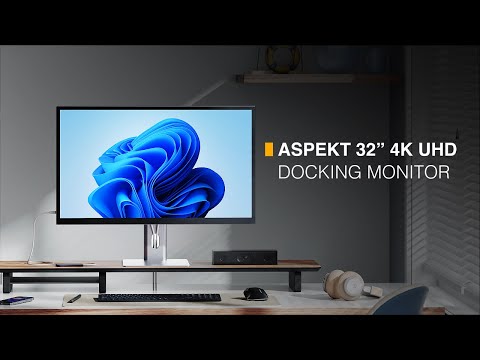


145W USB 충전 기능을 갖춘 Aspekt 32인치 4K UHD 도킹 모니터
145W USB 충전 기능을 갖춘 Aspekt 32인치 4K UHD 도킹 모니터
수령 가능 여부를 로드할 수 없습니다.
사양
사양
145W 충전 USB-C 도크를 갖춘 32인치 4K UHD 모니터
32인치 4K UHD 모니터
145W 충전 USB-C 도크 포함


좀 봐
밝은 면
Aspekt의 4K 초고해상도 화면은 매우 생생한 색상, 강한 대비 및 선명한 디테일을 생성하는 400니트의 밝은 광택 화면을 갖추고 있어 사용하기 매우 좋습니다.
진정한 도킹 모니터
Aspekt의 통합 USB-C 도킹 스테이션은 비디오에 사용하는 것과 동일한 USB-C 케이블을 통해 컴퓨터를 두 번째 4K 모니터(데이지 체인*), 90W 노트북 충전, 4개의 USB 액세서리 간에 공유되는 55W 충전 및 보안 이더넷에 연결합니다.
*Windows: 확장 디스플레이 Mac: 미러 디스플레이

켄싱턴 잠금 슬롯
모니터 보안
DC 전원
DC 전원 공급 장치를 제공하는 Connet
HDMI
컴퓨터를 4K 비디오에 연결합니다
디스플레이포트(입력)
컴퓨터를 4K 비디오에 연결합니다
3.5mm 오디오
스피커 및 헤드폰의 경우
USB-C(호스트)
4K 비디오 및 Aspekt의 도킹 스테이션
디스플레이포트(외부):
4K 데이지 체인
RJ45(이더넷):
빠르고 안전한 네트워킹
켄싱턴 잠금 슬롯:
모니터 보안

USB-C 및 USB-A(액세서리)
USB 액세서리 연결 및 충전
비디오 포트

HDMI

DisplayPort(입력 + 출력)

USB-C
액세서리 포트
USB-C 2개

USB-A 2개

RJ45 이더넷

3.5mm 오디오

2x 켄싱턴 보안 슬롯

당신을 색칠하세요
의지할 수 있다
처음부터 사진가, 비디오그래퍼, 일러스트레이터 및 디자이너의 요구를 충족하도록 설계된 Aspekt의 화면은 평균 Delta E를 갖춘 강력한 색 영역 범위(100% sRGB, 95% DCI-P3)를 자랑합니다. < 2로 디지털이나 인쇄에 일관되게 사실적인 다양한 색상을 제공합니다.
16:9
종횡비
3840x2160
해상도
137PPI
픽셀 밀도
400니트
밝기
1000:1
명암비
178오
시야각
넓은 4K
Aspekt의 3840x2160 해상도는 두 개의 앱을 나란히 실행할 수 있는 충분한 가상 화면 공간을 제공하므로 멀티태스킹에 적합합니다.

탁월한 영상
Aspekt의 놀라운 화면은 10억 7천만 가지 색상을 제공하여 카메라가 포착할 수 있는 모든 풍부함과 깊이를 이끌어냅니다.

극적인 HDR
Aspekt는 HDR400 디스플레이로 구동되는 깊은 그림자와 밝은 하이라이트를 통해 영화를 감상하는 멋진 방법으로도 활용됩니다.

두 가지 멋진 마감
조명이 제어되는 환경에서 Aspekt의 Gloss 마감은 풍부한 색상으로 더욱 선명한 이미지를 제공하는 반면 Aspekt의 Matt 마감은 빛을 확산시켜 밝은 사무실에 적합한 반사 없는 환경을 제공합니다.


연마
완벽함을 위해

80% 재활용 알루미늄으로 제작된 Aspekt의 미니멀하고 소재 지향적인 디자인은 화면의 이미지만큼이나 인상적입니다.
80% 재활용 알루미늄으로 제작된 Aspekt의 미니멀하고 소재 지향적인 디자인은 화면의 이미지만큼이나 인상적입니다.


지속 가능한 알루미늄


두 개의 모니터,
하나의 케이블
Windows 컴퓨터를 두 번째 4K 디스플레이에 연결할 수 있는 Aspekt의 Daisy Chaining 도크로 책상을 깔끔하게 유지하세요.
세계 최초의 145W 충전 모니터

90W
USB-C

30W
USB-C

15W
USB-C

2x5W
USB-A


액세서리
접근 가능하게 만들어짐
일상적인 액세스를 위해 측면에 2개의 USB 포트가 있고 장기간 액세서리를 위해 후면에 2개의 USB 포트가 내장되어 있어 Aspekt를 사용하면 쉽게 연결 상태를 유지할 수 있습니다.


ASPEKT는 모든 것을 해냅니다


General
- Aspekt monitors feature a more advanced USB-C dock than Clarity Max Touch, offering 30W faster laptop charging, two extra USB-C ports for accessories, daisy chaining and an Ethernet connection.
- Aspekt Touch allows you to choose which stand you want to use, while Clarity models have a set stand.
- Aspekt monitors have a matt finish that diffuses reflections, while Clarity monitors have a gloss finish.
- Clarity monitors are a little more colour accurate than Aspekt monitors, with an Avg. Delta E <1, as opposed to Aspekt’s <2.
- Clarity monitors have an ABS plastic frame, while Aspekt monitors use acrylic and aluminium.
- Clarity Max Monitors use a VA panel, which provides a bit more contrast but doesn’t have the wider viewing angles of Aspekt’s IPS panel.
If your device doesn’t support USB-C video transfer, we suggest using a DisplayPort cable, as Aspekt’s HDMI ports do not have the bandwidth to support Daisy Chaining.
If you’re unsure which of your laptop’s USB-C ports support USB PD, we suggest consulting the user manual or its manufacturer’s website.
However, Aspekt’s daisy chaining technology isn’t fully supported by Macs – meaning that while you can connect an additional 4K display to to Aspekt, it will show the same picture as Aspekt is (mirrored mode).
On Windows, Aspekt can extend your computer’s display to 1x additional 4K display, up to 2x additional QHD displays or 3x additional FHD displays connected in a daisy chain.
On Mac, Aspekt can mirror itself to one additional 4K/QHD/FHD display – this means that this monitor will show the exact same image as Aspekt is showing. In most cases, Mac users should connect to additional monitors directly, or using a Dual Display dock instead.
- You’re connecting over DisplayPort or USB-C.
- You’re using the correct DisplayPort to connect to the Daisy Chained monitor. Consult the user manual for more information.
- The “DP Output Mirror” setting in Aspekt’s “System” submenu is set to “off” if you’ve got a Windows computer connected, or “On” if you have a Mac.
- If these steps don’t help, contact us at support@alogic.co.