콘텐츠로 건너뛰기
🖥️ Tech Bonus Sale | Up to 50% Off
South Korea
장바구니
에 오신 것을 환영합니다 최첨단

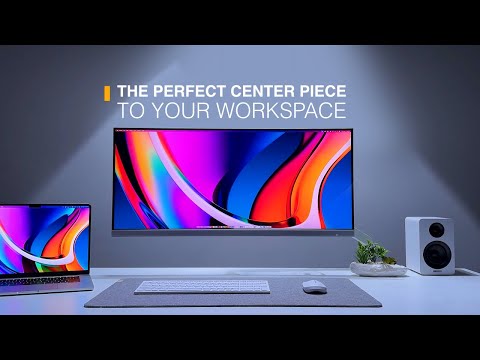
훌륭하다. 울트라와이드. 노트북 충전. Edge는 작업 공간의 완벽한 중심입니다. 집에서나 사무실에서.

울트라와이드에서 더 보기

Edge의 21:9 울트라와이드 화면은 비디오 편집, 음악 작곡 및 처리에 적합합니다. 16:9에 담을 수 없는 스프레드시트.

멀티태스킹에 적합

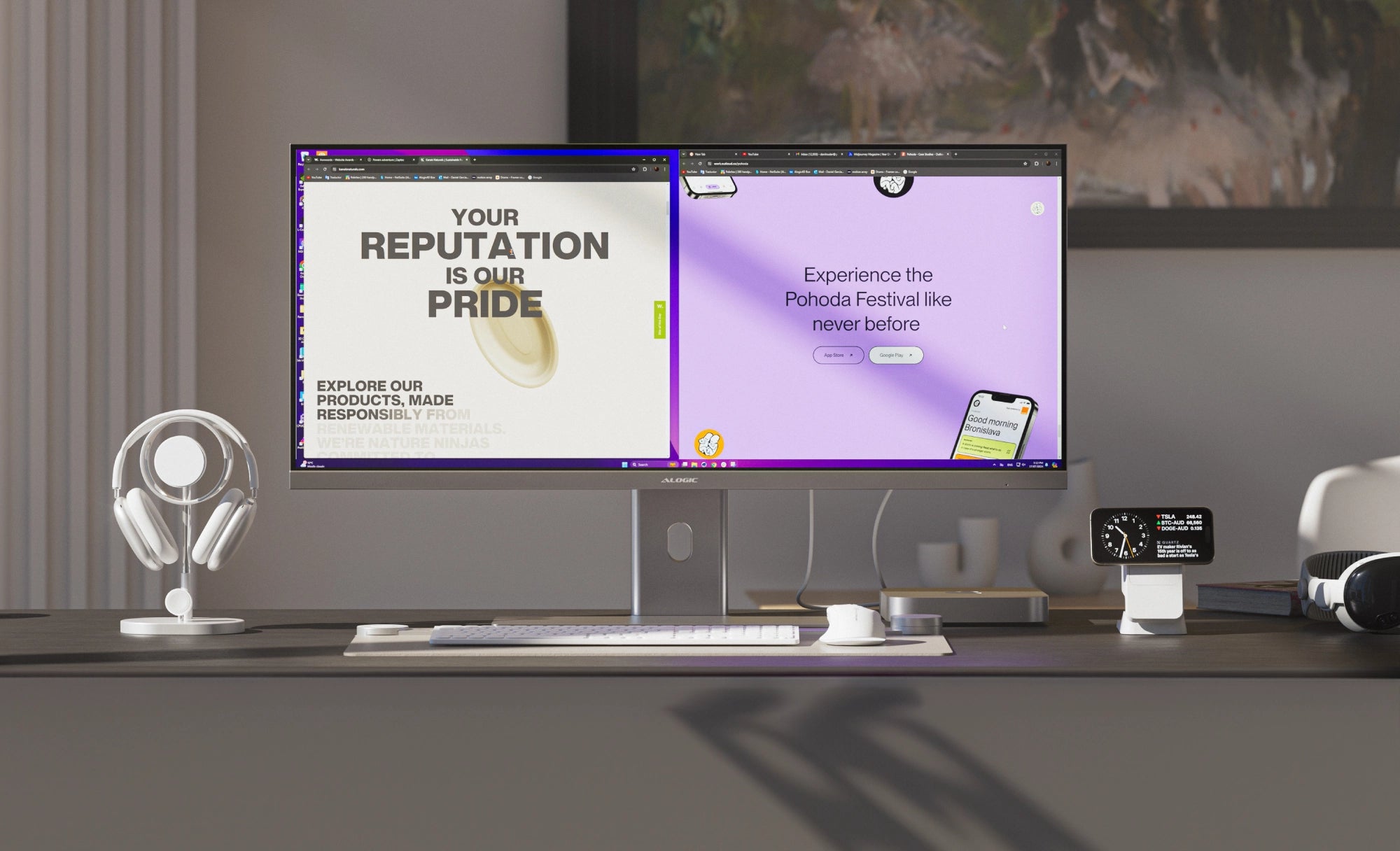
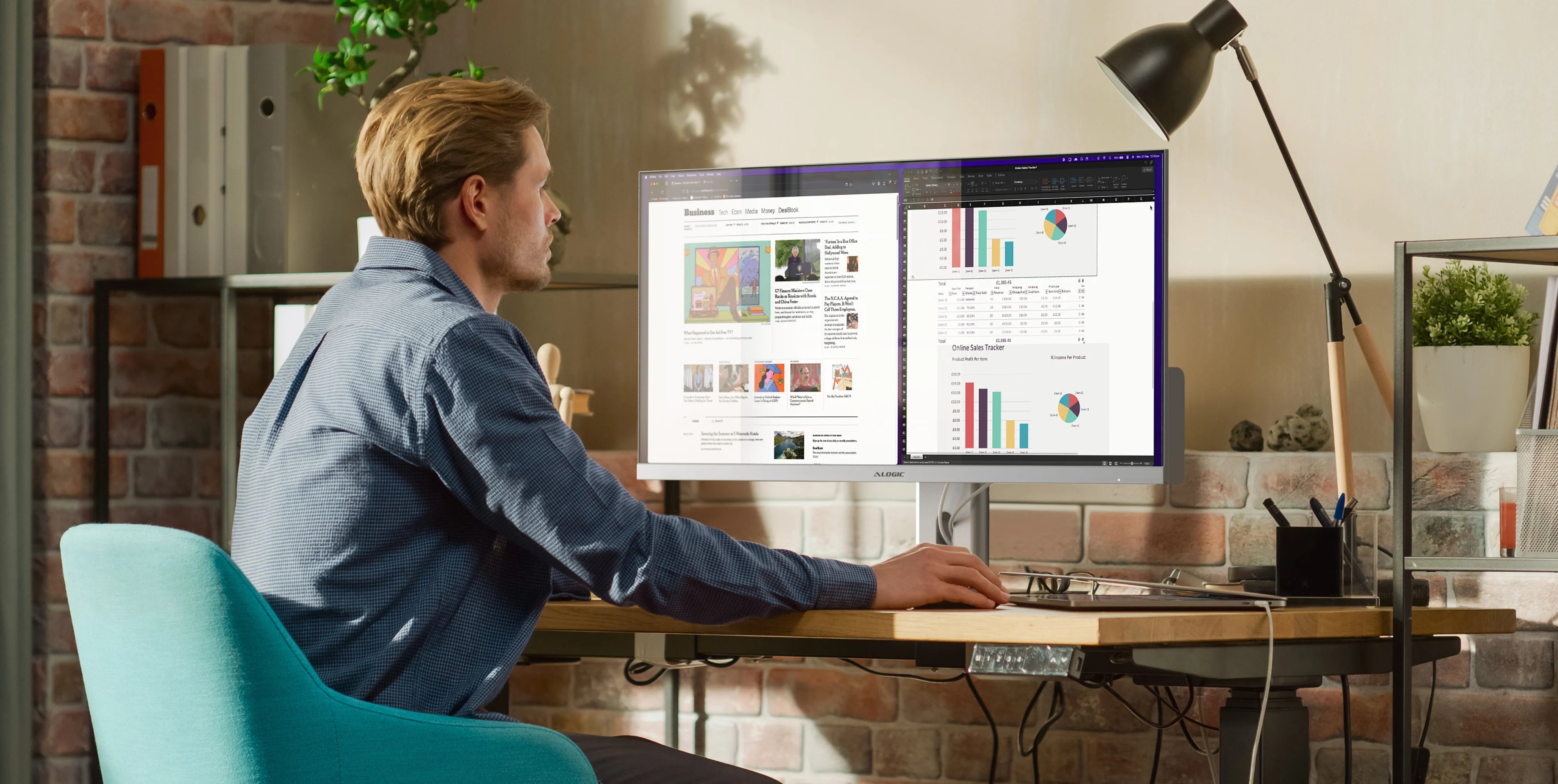
앱을 왼쪽과 오른쪽으로 고정한 Edge는 듀얼 모니터 설정의 모든 이점을 제공합니다. 창을 저글링하는 번거로움 없이.

부드러운 스크롤

Edge의 100Hz 새로 고침 빈도는 60Hz 화면보다 사용하기 더 즐겁습니다. 움직임이 적고 깜박임이 적습니다.

당신의 마음 작업공간
3440x1440
해상도
100Hz
재생률
21:9
종횡비
178°
시야각
400니트
최대 밝기
16.7
백만 가지 색상
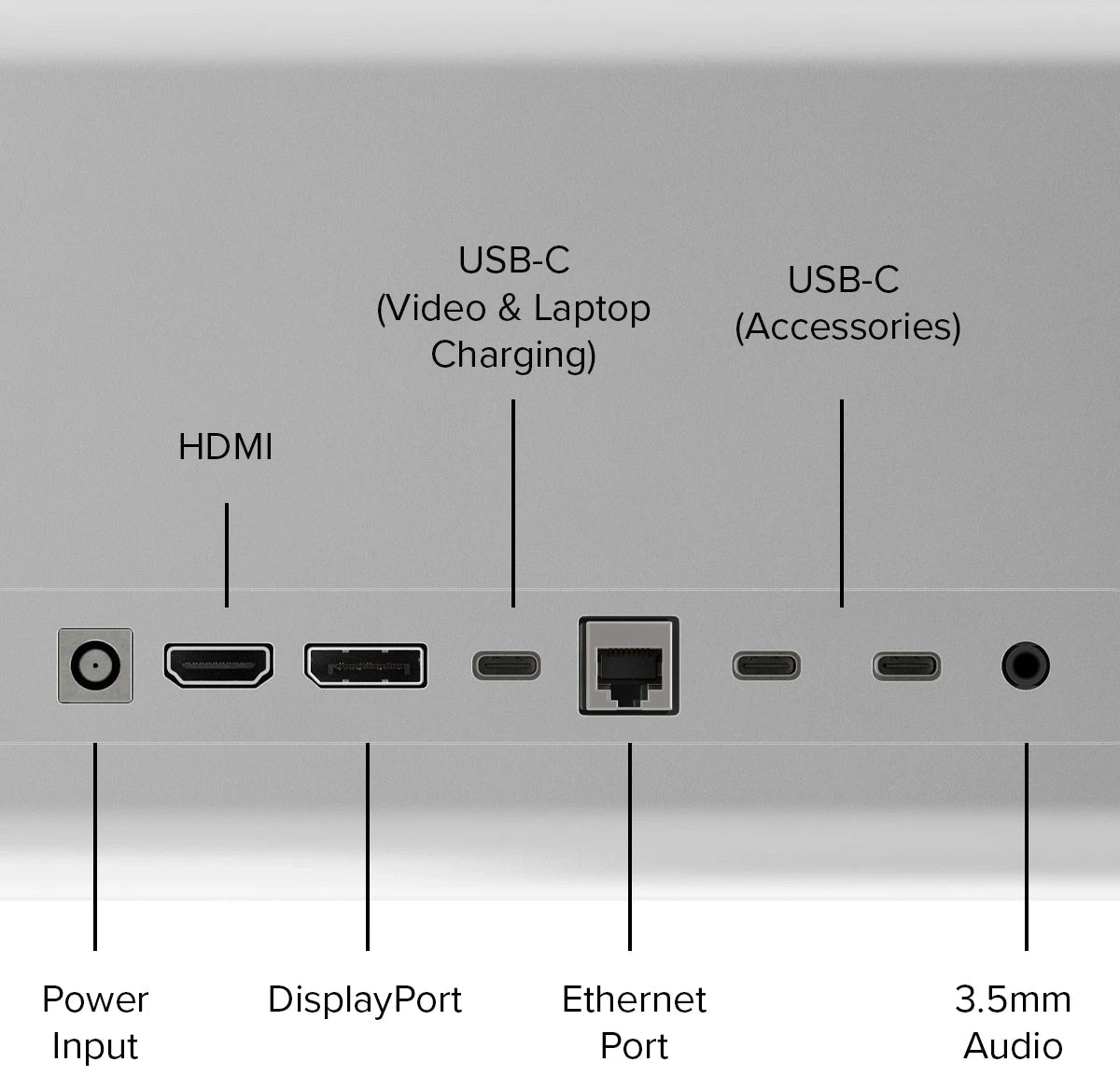
최첨단 연결성

Edge에 내장된 USB-C 허브에는 작업을 완료하는 데 필요한 모든 것이 있습니다.

스타일 물질을 만나다
멀티태스킹

Edge의 3440x1440 해상도에는 즐겨 사용하는 앱 두 개를 나란히 놓을 수 있는 충분한 공간이 있습니다. 나란히.
스타일

아름답게 강화된 유리와 전문적으로 마감된 알루미늄으로 Edge는 시대를 초월합니다. 미적.

연결성

Edge에는 3가지 비디오 옵션, 노트북 충전, 2개의 USB-C 액세서리, 오디오 및 이더넷.

모든 것의 우아함 밀리미터

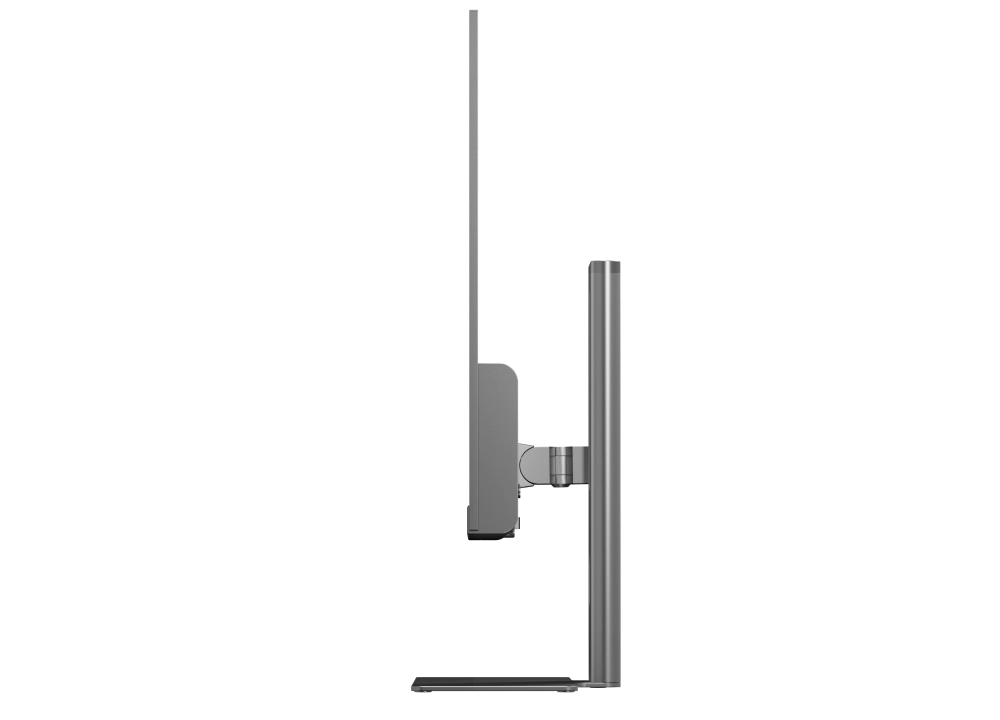
Edge의 매끄러운 디자인은 여러분이 이미 좋아하는 장치를 반영하는 동시에 믿을 수 없을 정도로 얇은 화면 차트를 제공합니다. 모니터를 위한 대담한 새로운 코스.

귀하의 일치

실버 및 스페이스 그레이 옵션으로, Edge는 귀하의 완벽한 동반자입니다. 맥북, 맥 미니 또는 스튜디오.

완벽한 데스크탑

Edge는 점점 더 다양해지는 마우스, 키보드, 인체공학적 노트북을 완벽하게 미학적으로 보완합니다. 거치대와 무선충전기.

절단 가장자리 디자인

아름답게 강화된 유리와 가공된 알루미늄으로 전문적으로 제작되었습니다. Edge의 8mm 얇은 프레임보다 더 뛰어난 것은 밝은 초광각 화면입니다.

최첨단 지속 가능성

지구를 보호하기 위해 Edge는 80% 재활용 알루미늄과 지속 가능한 유리로 제작되었습니다. 감소 유해한 플라스틱을 사용하면서 에너지 효율을 극대화합니다.

멀티태스킹 쉬워졌습니다

Mac 및 Windows 업데이트를 통해 앱 정리가 그 어느 때보다 쉬워졌습니다. 두 개의 창을 나란히 맞추려면 앱을 화면의 왼쪽이나 오른쪽 가장자리로 끌어서 반투명한 절반 화면 미리보기가 나타날 때까지 기다린 다음 놓습니다.

더 복잡한 레이아웃과 몇 가지 편리한 팁과 요령을 보려면 Microsoft와 Apple의 공식 창 배열 가이드를 살펴보는 것이 좋습니다.

안전함 그리고 보안

Edge의 Kensington 보안 슬롯(K-Slot)은 다음과 같은 상황에서 모니터를 안전하게 유지합니다. 핫 데스크, 공유 작업 공간 또는 보안이 어려운 곳에 배포 고객 대면 환경.

당신의 수준을 높이세요 사무실
Frequently Asked Questions

General

Does Edge support VESA Mounting?
Yes, Edge supports 100x100mm VESA mounts. As a larger monitor, it’s important to check your monitor stand will support Edge to avoid damaging your monitor.


Edge 34”: 815*41*367mm, 6kg
Edge 40”: 941*41*419mm, 7.4kg
How should I connect Edge to my computer?
If your computer supports USB-C video (Thunderbolt or DP Alt Mode) we recommend using the included USB-C cable to connect to Edge, as this will also connect your computer to Edge’s Ethernet and USB-C accessory ports as well as power delivery.
If your computer does not support this, HDMI and DisplayPort will both give you a full quality picture using Edge.
How do I charge my laptop with Edge?
To charge your laptop via Edge (up to 90W), simply connect it to the monitor via a USB-C cable which supports the required wattage. However, it does need to plug into a USB-C port compatible with PD (Power Delivery) on your computer. These can sometimes be identified by the presence of a battery icon next to the port on your laptop, but often you’ll need to check the user manual or manufacturer’s website to figure out which USB-C ports support PD. All Thunderbolt 3 and 4 ports support PD.
Does Edge work with Mac, Windows, Chromebook and Linux?
Yes, Edge monitors have been tested with all major operating systems.
Can I disable the “ALOGIC” light on the rear of the monitor?
No, the ALOGIC light cannot be manually turned off or on.
My Edge monitor does not have a Kensington Security Slot!
The earliest batch of Edge monitors do not include a K-Slot.

Compatibility

What locks is Edge’s Kensington Security Slow compatible with?
Edge’s Security Slot should be compatible with all standard K-Slot locking systems, but not Kensington Nano or Kensington Wedge locks.

Display

Why is the image on my monitor stretched out?
If the image on your screen looks stretched out or distorted, the most likely reason is that your computer isn’t sending the right video feed.
Windows:

1. Open “Settings” from the Windows Start Menu.
2. Navigate to “System” then “Display”.
3. In the bottom left corner of the window showing the displays, ensure it’s set to “Extend these Displays” and not “Duplicate these Displays”.
4. Ensure the resolution is set to “3456x1440” or “3440x1440”, whichever appears in your options list.

Mac:
1. Open your computer’s “System Settings” menu (click on the Apple icon in the top left corner) and navigate to “Displays”.
2. Click on your Edge monitor.
3. Make sure “Use as” is set to either “Main Display” or “Extended Display”, not “Mirror”.
4. In the list of available resolutions, ensure Edge is set to either “3456x1440” or “3440x1440”, whichever appears in the list. If this doesn’t work, try resetting Edge’s settings to factory default – open the monitor’s menu by pressing in the joystick, navigate down to “System Settings” then select Reset.
If these steps don’t resolve your problem, please reach out to support.au@alogic.co and we’ll help you figure out what’s going wrong.
Does Edge support Picture in Picture?
Yes, Edge supports Picture in Picture (PIP) and Picture by Picture (PBP) modes, which can be activated via the “Multi-Window” section of the monitor’s settings menu, under “Picture”.
How can I set up multiple windows for multitasking?
On the latest versions of Windows, macOS and most versions of Linux, arranging two windows side by side is as easy as selecting and dragging an app or window to the edge of the screen, waiting until a translucent outline appears over half the screen, and releasing. For more information on these features and advanced tips, consult Microsoft and Apple’s official help pages.