

 South Korea
 USA
USA Canada
 Australia
 UK
UK Europe
 New Zealand
 Japan
Japan Singapore
 UAE
UAE India
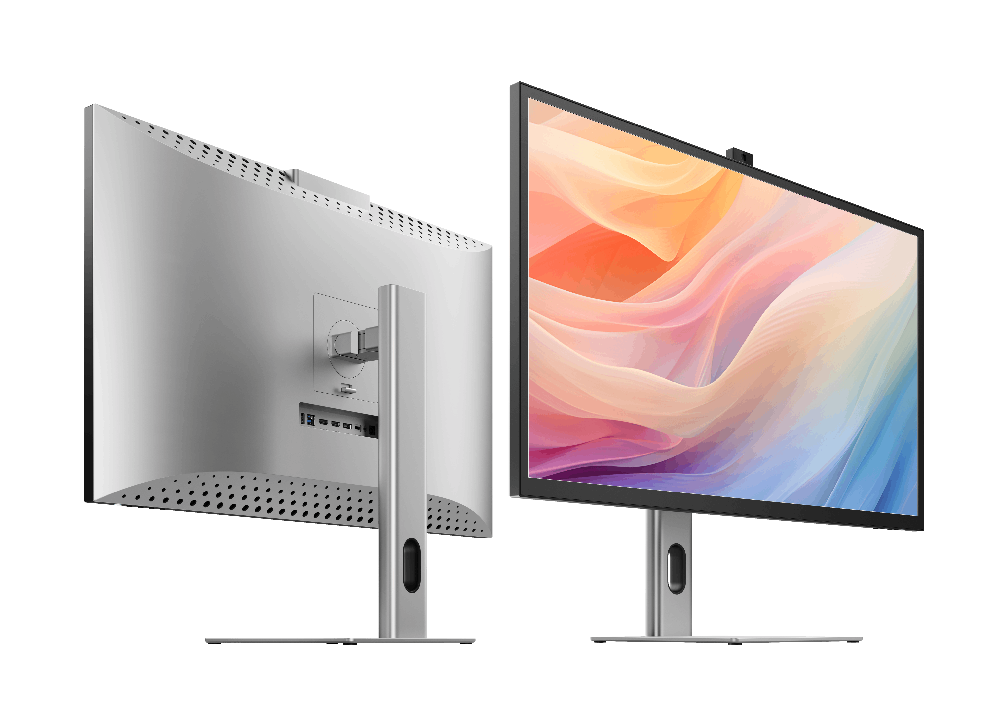
IndiaCLARITY 27인치 UHD 4K 모니터




CLARITY 27인치 UHD 4K 모니터
CLARITY 27인치 UHD 4K 모니터
수령 가능 여부를 로드할 수 없습니다.
사양
사양

"Alogic의 Clarity 27인치 4K 모니터는 Apple의 스튜디오 디스플레이에 대한 저렴한 대안입니다."

“이 4K UHD 디스플레이는 Apple Studio Display의 저렴한 대안이며 어떤 면에서는 우수해요.”

“ 예산에 중점을 두고 사용자의 기분에 따라 움직일 수 있는 좋은 디스플레이를 원하는 사람들을 위해, Alogic Clarity는 분명히 더 나은 선택입니다.”

“Alogic Clarity는 놀랍도록 밝고, 밝고, 아름다운 모니터입니다. Mac(또는 PC)에 스튜디오 품질의 디스플레이를 제공하지만 Apple 자체 스튜디오보다 비용이 훨씬 저렴합니다. 디스플레이.”

Active Surface 스타일러스는 완벽한 정밀도를 전달하여 이상적입니다. Clarity 27인치 UHD 4K 모니터는 필요한 전문가에게 최고의 이미지 품질을 제공합니다. 화면상의 창의성과 생산성을 극대화합니다. Clarity에 연결된 시각적 광고 소재는 10억 7천만 가지 색상 팔레트를 사용할 수 있습니다. Ultra HD [60Hz] 모니터는 고화질로 화면 요소의 가시성을 높여줍니다. 사진 밝기 [350 CD/M2]. 모니터는 또한 1000000:1의 강력한 동적 명암비를 갖추고 있어 생생한 느낌을 줍니다. 콘텐츠의 가장 밝은 흰색과 가장 어두운 검정색. 아름답고 선명한 디스플레이에 의존하는 고성능 가정과 사무실은 Clarity의 몰입감 넘치는 화질에 필요한 모든 것이 담겨 있습니다.

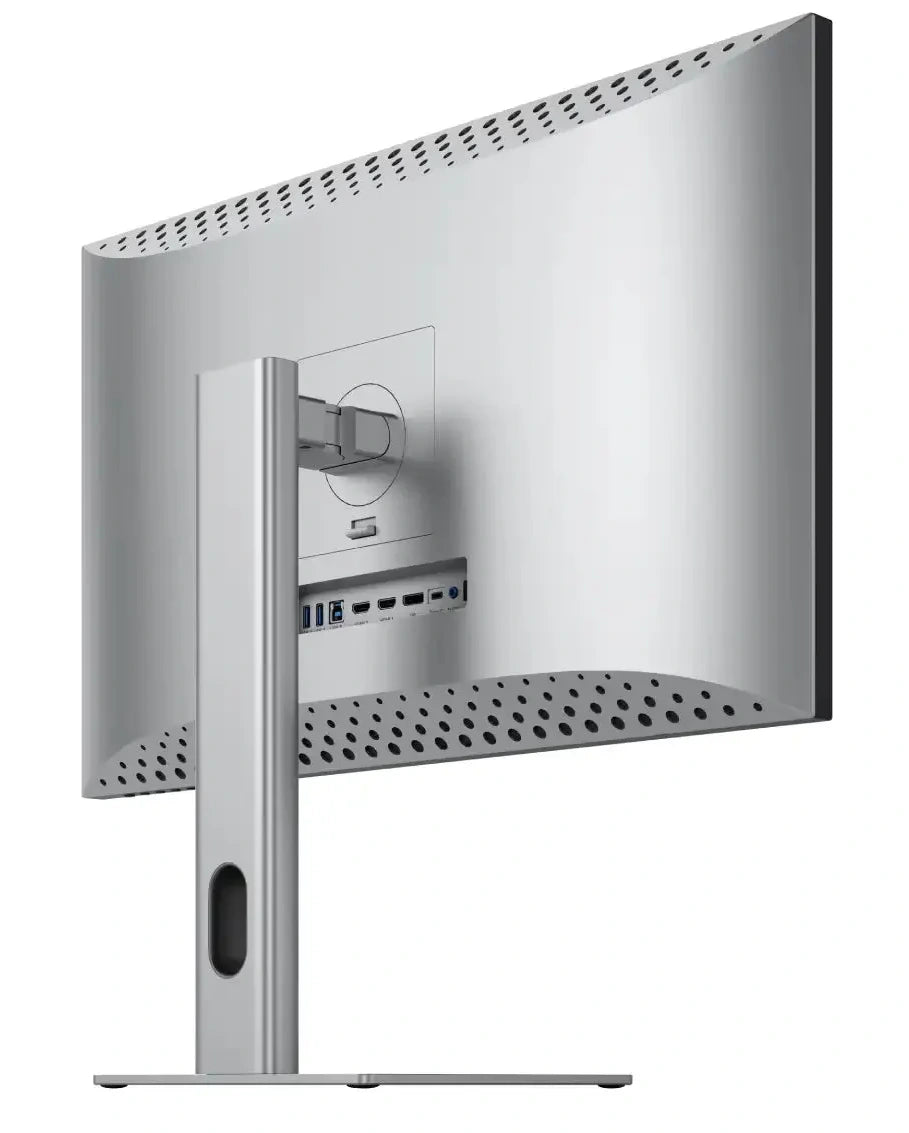
단순히 아름다운 디스플레이 그 이상입니다. Clarity는 고성능 USB-C입니다. 노트북의 기능을 확장할 준비가 된 사무실 전문가를 위한 도킹 스테이션입니다.
필수 책상 액세서리를 실행하려면 컴퓨터를 Clarity의 USB [A 및 C] 포트에 연결하세요. 키보드, 마우스, USB 저장소 등을 포함합니다. Clarity가 노트북을 충전하는 동안 작업을 계속하세요. 최대 90W의 전력 공급이 가능합니다.
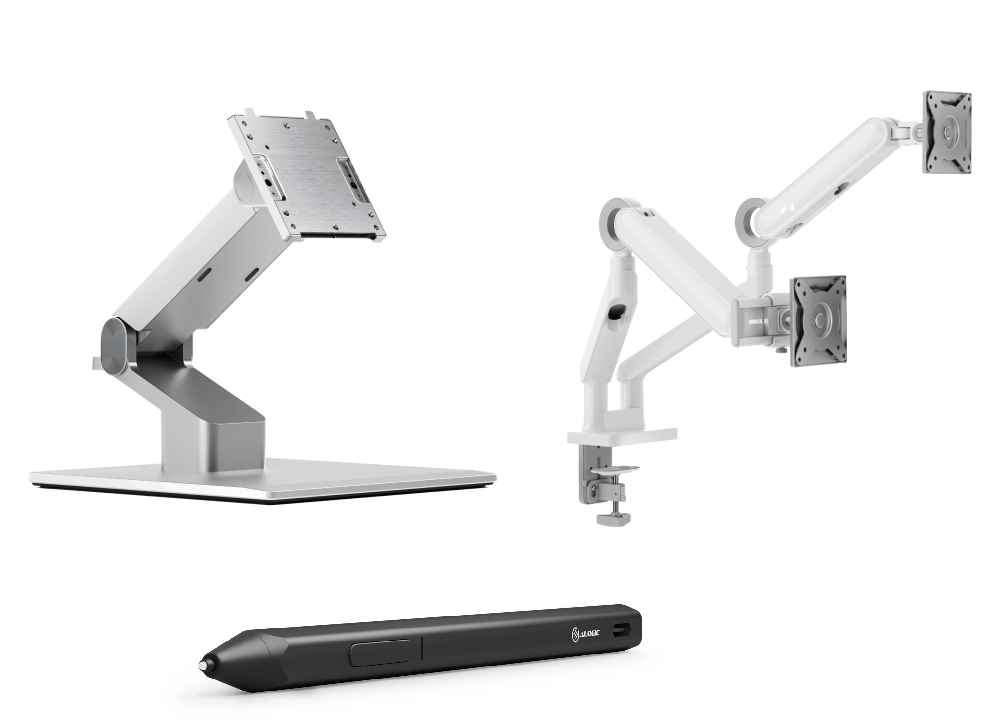
Active Surface 스타일러스는 완벽한 정밀도를 전달하여 이상적입니다.
Clarity는 뛰어난 인체공학적 지원과 사용자 친화적인 시청 경험을 제공합니다.
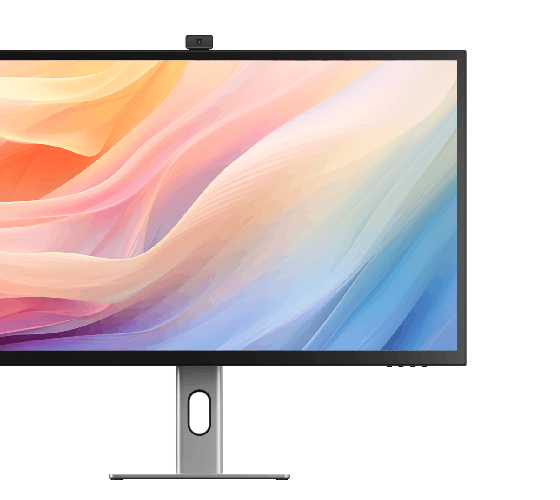
바쁜 직장. 얇은 베젤 모니터의 전폭적인 화면 공간은 전문가에게 더 많은 것을 선사합니다.
이미지 디자인, 비디오 편집 등의 작업을 위한 넓은 화면 공간.
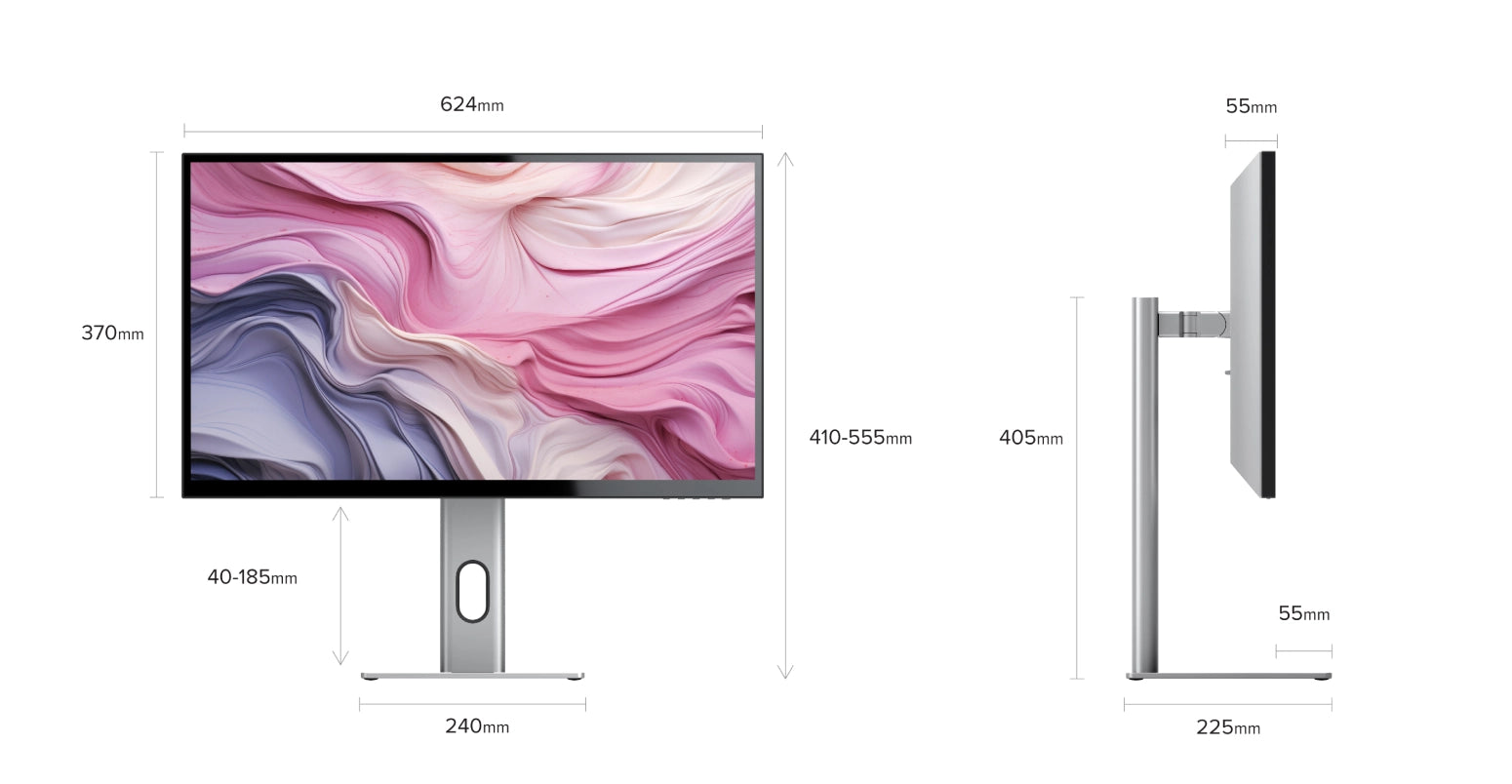
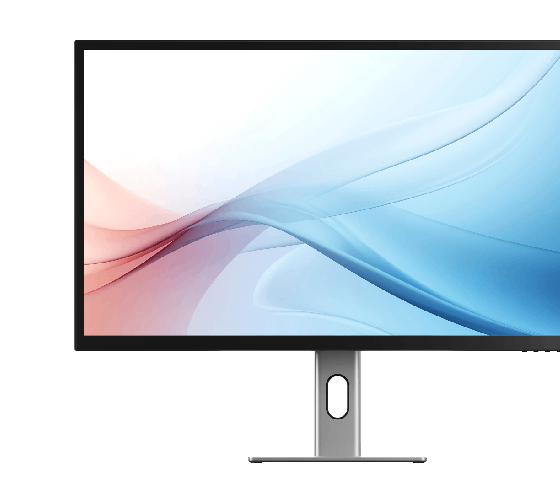
시청 요구 사항에 맞게 조정 가능한 모니터를 쉽게 설정할 수 있습니다. 27인치를 업그레이드하세요
모니터 높이. 가로 모드와 세로 모드 간에 화면을 회전합니다. 아니면 자유롭게 기울여서
가장 편안한 시야각을 위해 모니터하세요.
Clarity에는 IPS(In-Plane Switching) 기능도 있습니다. IPS 디스플레이 패널 기술로
직장 팀은 최대 178도 각도에서 동일한 화면을 볼 수 있습니다[거의 완전히
옆으로], 이미지 품질 저하 없이.



General
1. Connected to Clarity via either:Clarity's USB-C port or Clarity's USB-B port
2. Clarity "Active USB" mode is set to the same USB port you've connected to your computer.
To change Clarity's "Active USB" mode, navigate to "USB Switch" in the "Other Settings" menu of Clarity's main menu.
For example: if your computer is connected to Clarity via USB-C, you would select "Type-C" in the "USB Switch" menu.
Remove the stand stem and base from their protective bags. Slot the stem onto the base and fasten via the thumb screw underneath the base.Align the two latches at the top of the stand stem with the notches in your Clarity display, with the display still in the foam housing. Gently push the rear plate into Clarity, it will click into place.Lift your monitor out of the foam, ensuring the display's weight remains supported.
Troubleshooting
1. You're connecting to Clarity with USB-C. HDR is only available when connected via HDMI or DisplayPort.
2. You're using the monitor in SRGB, Uniformity or Adobe RGB mode. Both of these video presets are designed to provide perfect colour reproduction over a limited colour gamut. HDR produces colours outside these limited gamuts and thus can't be used at the same time. You can re-enable HDR by switching back to "Standard" mode in the Professional Settings menu.
Ensure you connect the charging cable to a port on the laptop which supports charging.