

 South Korea
 USA
USA Canada
 Australia
 UK
UK Europe
 New Zealand
 Japan
Japan Singapore
 UAE
UAE India
IndiaEchelon USB-C 충전식 무선 마우스


Echelon USB-C 충전식 무선 마우스
Echelon USB-C 충전식 무선 마우스
정가
₩38,730
판매 가격
₩38,730
정가
₩38,730
수령 가능 여부를 로드할 수 없습니다.
사양
사양




에셜론
더 나은 업무 방식


가볍고 인체공학적
Echelon의 로우 프로파일 곡선은 오랜 시간 동안 손에 편안하게 고정되도록 설계되었습니다. 사용 후 다음 회의에 가져갈 수 있도록 주머니나 가방에 깔끔하게 넣어두세요.


현대적이고 미니멀리스트
깔끔하고 절제된 디자인의 Echelon Wireless Mouse는 어떤 책상에도 잘 어울리며, 동료를 괴롭히지 않는 속삭이는 듯한 조용한 클릭.
한 번의 클릭으로 장치 전환
Echelon을 사용하면 빠르게 전환할 수 있는 버튼으로 멀티태스킹이 쉬워집니다. 페어링된 Bluetooth 장치와 2.4Ghz로 연결된 장치 사이 MacBook 및 iPad와 같은 USB-A 동글.


배터리가 필요하지 않습니다
혁신적인 USB-C 포트 배치 덕분에 Echelon은 재충전하는 동안에도 사용할 수 있습니다.

USB 유형 C

배터리는 몇 주 동안 지속됩니다.


윈도우
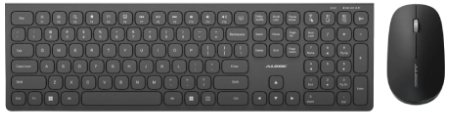

Frequently Asked Questions
General
Will this work with my Laptop/Phone/Tablet?
Almost certainly. The Echelon Wireless Mouse has been tested with Windows, macOS, Chromebook, iPhones, iPads and Android Phones and Tablets and worked well with all of them.
Does Echelon support key rebinding and macros?
No, neither the Echelon Mouse nor the Keyboard includes any software for changing the functionality of its keys.
Should I use the 2.4Ghz or Bluetooth connection with Echelon?
For most users, there will be very little appreciable difference between Echelon’s Bluetooth and 2.4GHz modes. Some users find it easier to plug in a USB-A device, while others find the Bluetooth pairing process more convenient. The 2.4GHz mode is slightly more responsive and suffers a little less signal loss, which can be useful if you’re playing video games or require rapid responses for some other reason.
How long does the Echelon Wireless Mouse take to charge?
Less than an hour when connected to your computer’s USB-C port.
How long does the Echelon Wireless Mouse’s battery last?
In typical office usage, we’ve found that the Echelon Wireless Mouse battery lasts 2-3 weeks between charges.
Can I use Echelon wired?
Echelon devices can be used while charging, but they can’t connect to a computer via USB – they need a wireless Bluetooth or 2.4GHz connection.
Troubleshooting
How do I connect with Bluetooth?
Wireless Keyboard:
1. Press and hold FN + the Bluetooth 1 or 2 keys (Copy and Paste above the Numpad) until the connection light begins flashing green.
2. From your device’s Bluetooth menu, pair with ALG_KEYBOARD.
Wireless Mouse:
1. Hold the connection button for 3 seconds, until the light begins flashing.
2. Pair with “ALG_MOUSE” in your device’s Bluetooth menu.
1. Press and hold FN + the Bluetooth 1 or 2 keys (Copy and Paste above the Numpad) until the connection light begins flashing green.
2. From your device’s Bluetooth menu, pair with ALG_KEYBOARD.
Wireless Mouse:
1. Hold the connection button for 3 seconds, until the light begins flashing.
2. Pair with “ALG_MOUSE” in your device’s Bluetooth menu.
How do I connect to Echelon via the 2.4GHz Dongle?
Wireless Keyboard:
1. Remove the USB dongle from the underside of your mouse and plug it into your computer.
2. Turn on your keyboard.
3. Hold the “FN” and 2.4GHz button (Select All above the numpad) down for a few seconds until the connection light begins flashing. Once it stops flashing, your keyboard is connected.
4. If it doesn’t stop flashing after 10 seconds, remove the USB dongle from your device and plug it back in. They keyboard should now connect.
Wireless Mouse:
1. Connect the 2.4GHz dongle to your device.
2. Hold the connection button on the underside of your mouse for 3 seconds.
1. Remove the USB dongle from the underside of your mouse and plug it into your computer.
2. Turn on your keyboard.
3. Hold the “FN” and 2.4GHz button (Select All above the numpad) down for a few seconds until the connection light begins flashing. Once it stops flashing, your keyboard is connected.
4. If it doesn’t stop flashing after 10 seconds, remove the USB dongle from your device and plug it back in. They keyboard should now connect.
Wireless Mouse:
1. Connect the 2.4GHz dongle to your device.
2. Hold the connection button on the underside of your mouse for 3 seconds.
My mouse won’t connect
Restart the computer or device. 2.4GHz: Turn off the mouse, unplug the 2.4GHz dongle and plug it back in. Turn the mouse back on and hold the connection button for 3+ seconds until the light flashes. Bluetooth: Unpair “ALG_Mouse” from your Bluetooth menu. Pair it again by holding the connection button for 3+ seconds. If this doesn’t work, try cycling through connections by pressing the connection button and testing the mouse. Unpair the mouse from other nearby Bluetooth devices.
My mouse is unresponsive
Press the left mouse button a few times to wake it up. Plug in the USB-C cable to recharge your mouse’s battery – when Echelon’s battery is low, it enters a more aggressive sleep mode to try and preserve power. Turn the mouse off and on again.