

 South Korea
 USA
USA Canada
 Australia
 UK
UK Europe
 New Zealand
 Japan
Japan Singapore
 UAE
UAE India
IndiaThunderbolt 4 BLAZE 도킹 스테이션


Thunderbolt 4 BLAZE 도킹 스테이션
Thunderbolt 4 BLAZE 도킹 스테이션
수령 가능 여부를 로드할 수 없습니다.
사양
사양

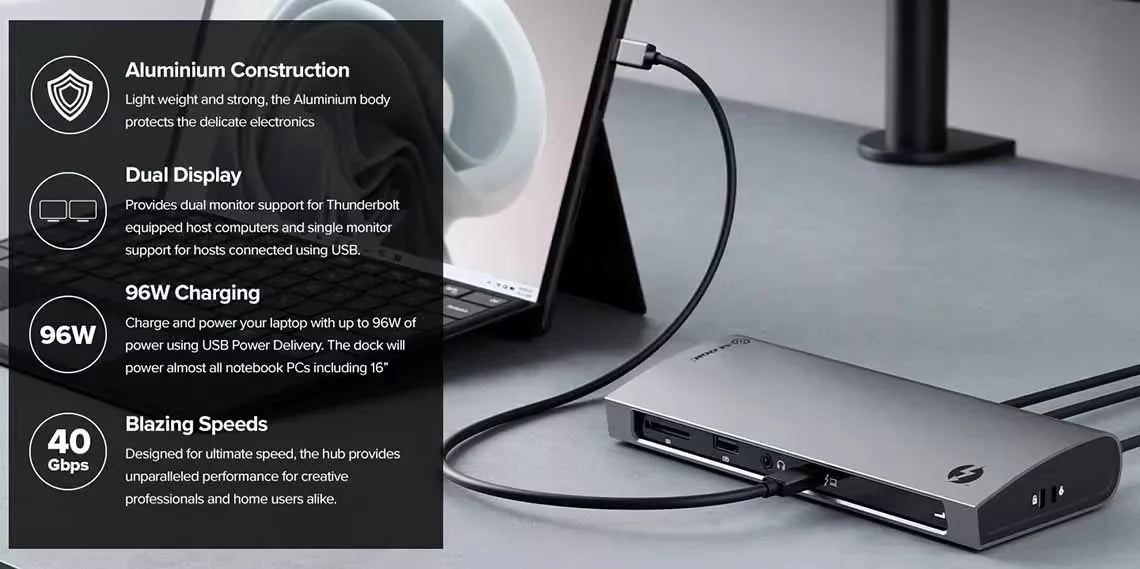
속도와 성능이 중요한 순간에 딱 맞는 Thunderbolt™ 4 인증된 도크 40Gbps의 데이터를 처리할 수 있어 하나의 디스플레이로 두 개의 디스플레이에 연결할 수 있습니다. 케이블을 연결하거나 외장 하드 드라이브와 같은 고속 주변 장치를 최대화합니다. 기존과 달리 단일 Thunderbolt™ 다운스트림 포트만 제공하는 Thunderbolt™ 도크 BLAZE 듀얼 모니터 도킹 스테이션은 최대 3개의 다운스트림을 연결할 수 있습니다. Thunderbolt™ 또는 USB 4.0 주변 장치. SD 카드, 이더넷 및 USB-A 연결 BLAZE를 창의적인 전문가와 고급 사용자 모두에게 귀중한 도구로 만들어 보세요.


BLAZE Thunderbolt™ 4 도크는 Thunderbolt 컴퓨터를 두 대의 4K에 연결합니다. USB-C DP Alt 모드 컴퓨터는 하나의 4K 화면에 연결할 수 있습니다.
- Thunderbolt 3 또는 4: 60Hz*의 듀얼 4K 모니터
- USB-C(DP Alt 모드): 최대 60Hz의 단일 4K 모니터†
BLAZE Thunderbolt™ 4 인증 4k 도킹 스테이션에는 다음을 허용하는 10개의 포트가 있습니다. 사용자는 다음을 포함한 다양한 주변 장치에 연결할 수 있습니다.
- 3 x Thunderbolt/USB-C(40Gbps)
- USB-A(10Gbps) 3개
- 모바일 장치 충전 기능이 있는 USB-A 1개(480Mbps)
- 기가비트 이더넷
- 콤보 헤드폰/마이크 오디오 잭
- SD 4.0 카드 리더기
- 단일 케이블 단순성


BLAZE 도킹 스테이션은 단지 컴퓨터에 10개의 도킹 스테이션을 제공하는 것이 아닙니다. 추가 연결 - 단일 Thunderbolt™ 4 케이블을 통해 연결됩니다. 그 외에도 다양한 데이터 및 비디오 옵션을 제공하는 BLAZE의 단일 케이블은 최대 96W USB-C를 제공합니다. PD 노트북 충전, 16인치 MacBook을 포함한 대부분의 노트북에 전원을 공급하기에 충분합니다.

General
Dual Display: 4K (3840 x 2160) at 60Hz*USB-C USB 3.x Hosts
Single Display: 4K (3840 x 2160) at up to 60Hz
* M1 based Apple devices can only support a single external monitor connected via Thunderbolt or USB-C DisplayPort Alternate Mode.
USB-C port must be DisplayPort 1.4 Alternate Mode compatible for 4K output at 60Hz. Machines supporting DisplayPort 1.2 will output resolutions up 2560x1600 at 60Hz or 4K at 30Hz.
Check that the USB-C video cable is connected securely between the monitor and device and the device is securely connected to the computer
Check that the external monitor is turned on and set to the correct input
Check that your computer is detecting the external display and is set to show video on it
Check that the USB-C port on the computer that you have connected the dock to is a Thunderbolt port or a USB-C port that supports video output using DisplayPort Alternate Mode
If the computer doesn’t detect the external monitor or output video after checking the above, restart your computer and attempt again
If connecting to a monitor with a USB-C or Thunderbolt input, ensure that the cable you are using supports full speed data. Many USB-C cables are intended for charging only and only support USB 2.0.
Troubleshooting
Check that the USB-C video cable is connected securely between the display and device
Check that the device is securely connected to the computer
Check that the USB-C video cable being used to connect to the display is of good quality and isn’t damaged
Ensure that the power supply is connected at the wall and turned on, and the USB-C cable supplying power is securely connected to the computer Verify that the port on the computer is a Thunderbolt port or a USB-C port that supports charging from a USB PD power source