

 South Korea
 USA
USA Canada
 Australia
 UK
UK Europe
 New Zealand
 Japan
Japan Singapore
 UAE
UAE India
IndiaUSB-C 전원 공급 및 웹캠을 갖춘 Clarity Max Pro 32인치 UHD 4K 모니터


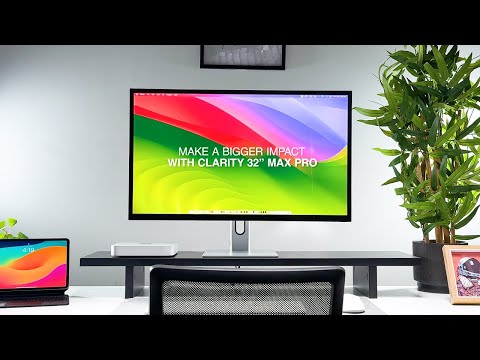


USB-C 전원 공급 및 웹캠을 갖춘 Clarity Max Pro 32인치 UHD 4K 모니터
USB-C 전원 공급 및 웹캠을 갖춘 Clarity Max Pro 32인치 UHD 4K 모니터
수령 가능 여부를 로드할 수 없습니다.
사양
사양

"다채롭고 풍부하며 밝습니다. 많은 경쟁사 제품보다 훨씬 저렴한 가격으로 사용자를 놀라게 할 괴물 디스플레이입니다."

"32인치 모델은 모두 USB-C를 통해 최대 65와트의 패스스루 전력을 제공하므로 노트북을 충전 상태로 유지할 수 있습니다."

"Alogic은 인기 있는 27인치 디스플레이 라인업에 이어 새로운 32인치 모델을 출시했습니다."

"Alogic Clarity 32인치 4k UHD 디스플레이 모니터는 IPS 패널을 사용하며 4가지 변형 제품이 다양한 용도에 적합합니다."

Clarity 모니터 뒤에 숨은 기술은 과거에도 그 빛을 잃지 않았습니다.
더 큰 화면으로의 전환. 크리에이티브 전문가를 위한 스튜디오급 도구로 남아 있습니다.
정확한 색상에 의존하여 작업하는 사람.
HDR400 지원 및 3000:1 명암비를 갖춘 Clarity Max는
깊은 검정색과 눈길을 사로잡는 밝기. 1,600만 가지가 넘는 색상을 제공합니다.
4K 초고해상도 디스플레이, Clarity Max 모니터는
다음
걸작.

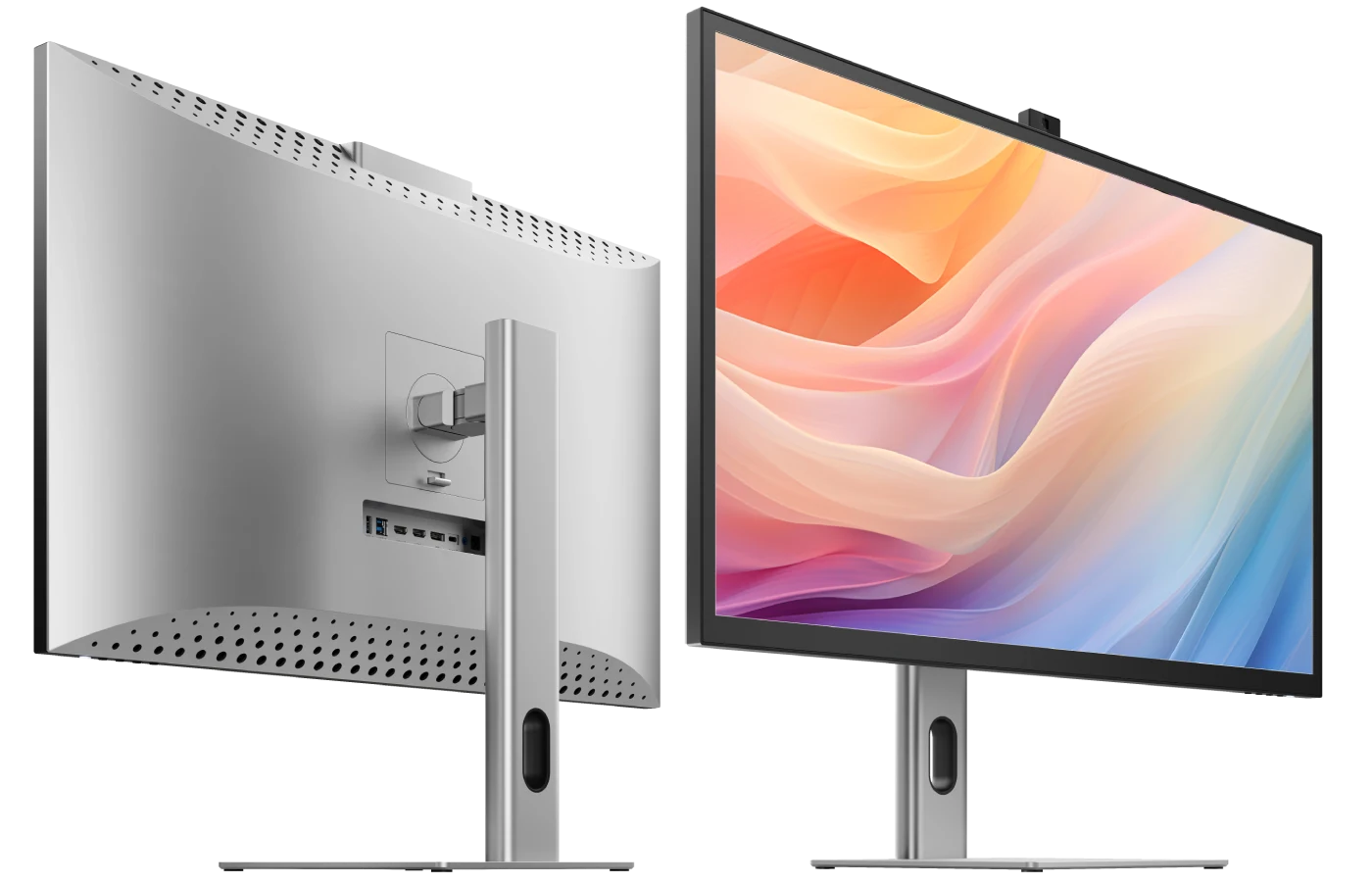
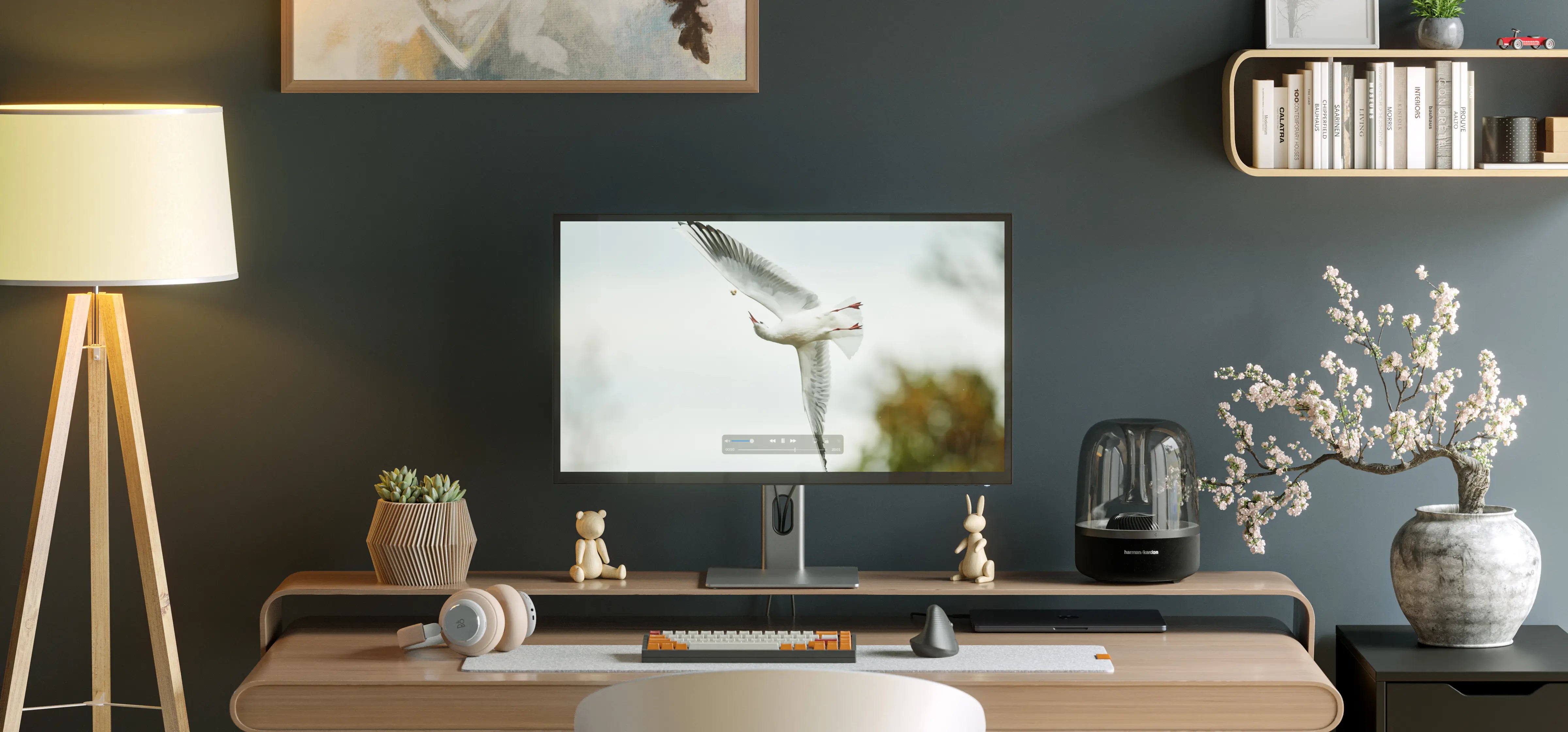
스튜디오 중앙에 위치한 Clarity Max Pro는 컴퓨터를
다음 작품을 구성하는 데 필요한 모든 것.
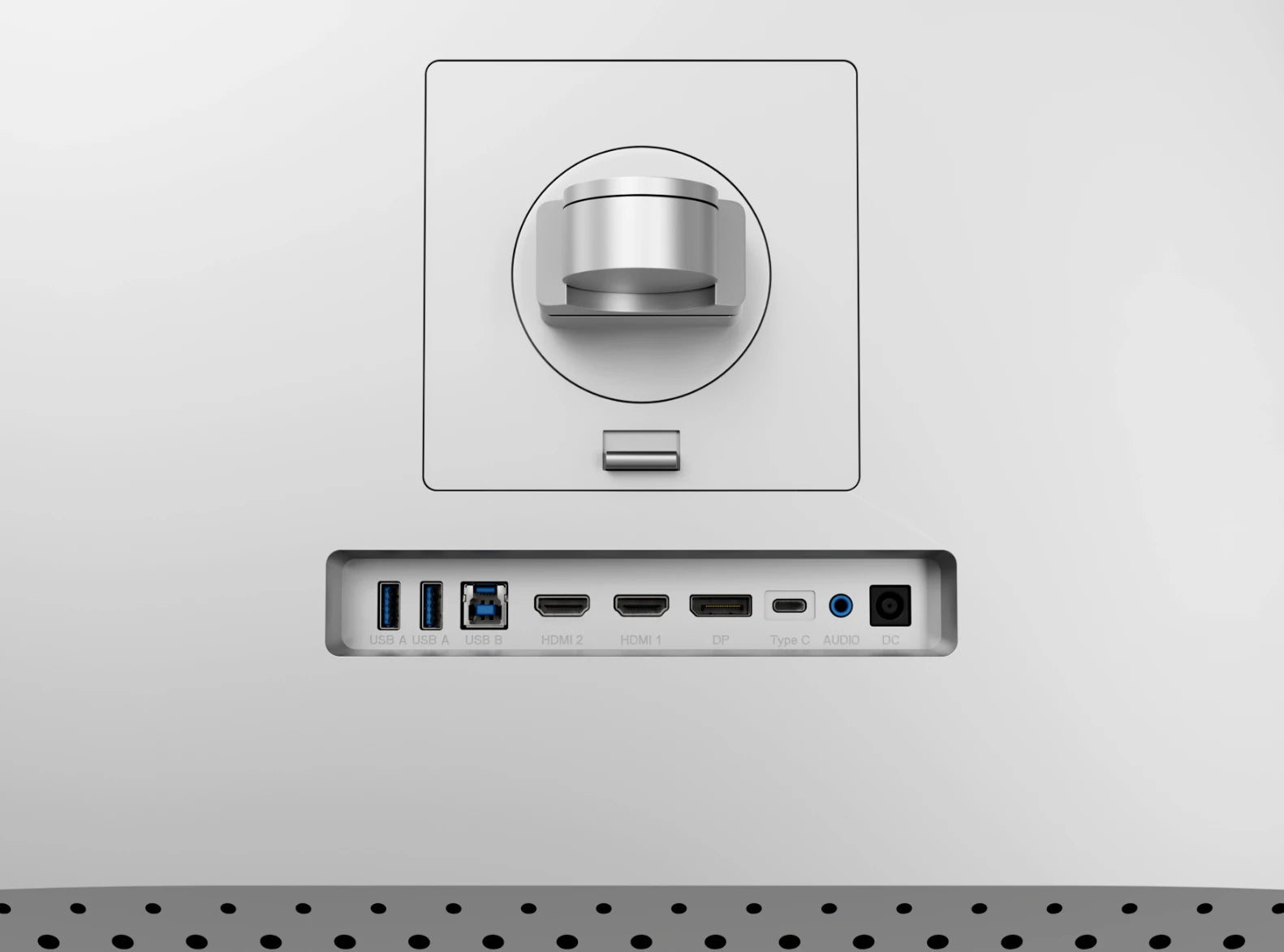
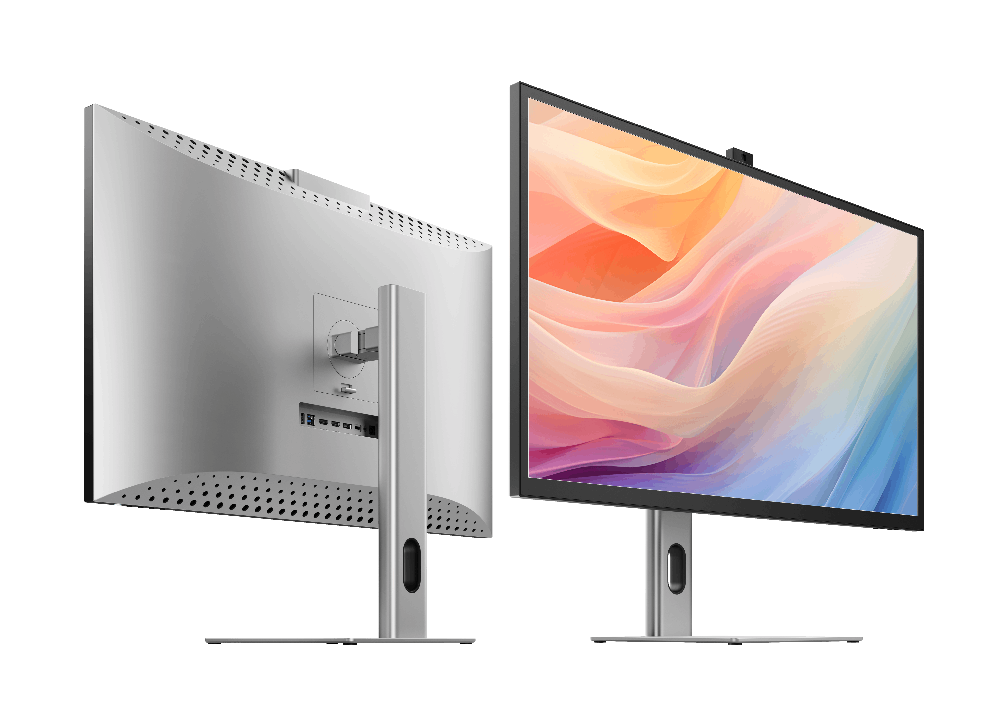
후면 USB 허브는 컴퓨터 Clarity Max Pro의 웹캠, USB-A 액세서리 2개, 65W 노트북을 연결합니다.
충전 및 3.5mm 스피커 또는 헤드폰 – 모두 동일한 USB-C 케이블로 사용
비디오.


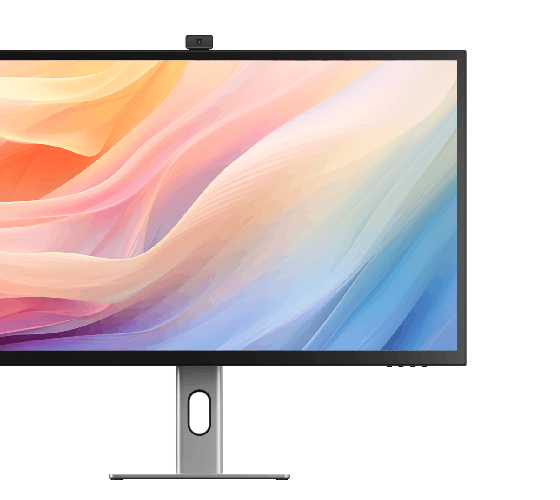
최선을 다해 앞으로 나아가십시오. 수정같이 맑은 클래리티 맥스의 사진 Pro 또는 Touch의 8MP 접이식 웹캠. 스마트 웹캠이 자동으로 다시 사용하지 않을 때 모니터링하여 의도하지 않은 내용을 공유하지 못하게 합니다.


알루미늄 스탠드를 사용하면 Clarity Max를 원하는 위치에 쉽게 배치할 수 있습니다.
필요하면 책상 설정에 맞게 디스플레이를 올리고, 피벗하고, 기울이고, 회전시킬 수 있습니다.
인체공학적 편안함.
Clarity Max를 사용하면 178°의 넓은 시야각으로 최신 디자인을 동료에게 쉽게 보여줄 수 있습니다.
넓은 32인치 화면에 걸쳐 다양한 각도로 볼 수 있습니다.
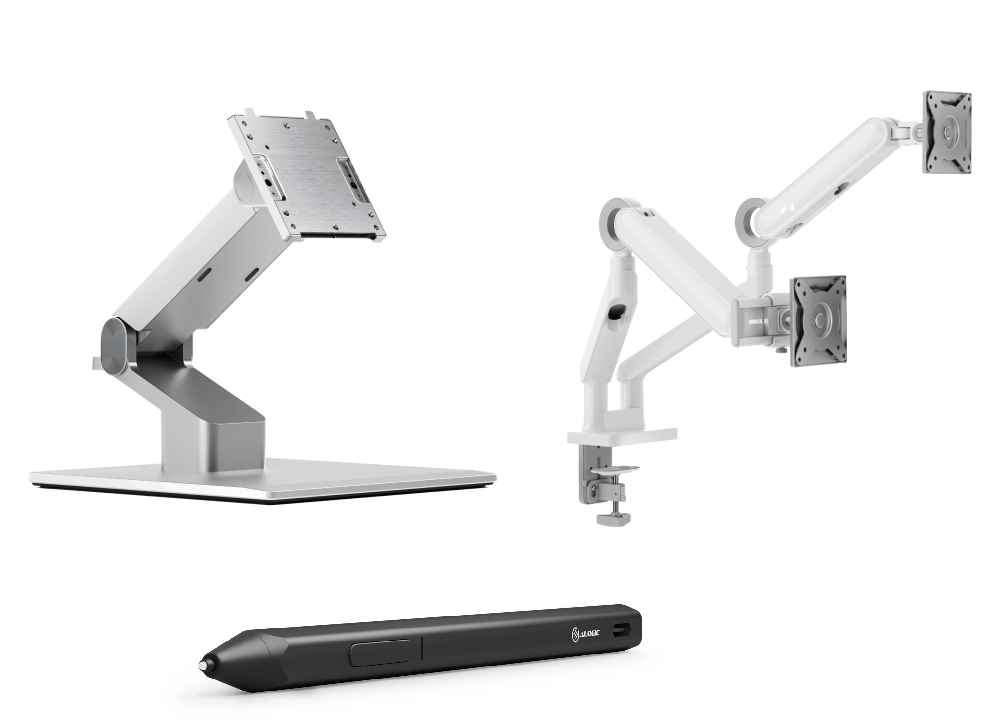
100x100mm VESA 마운트(예: 당사의 선명도 접이식 스탠드 그리고 글라이드 모니터 암),
Clarity Max는 크기에도 불구하고 어떤 설정에도 쉽게 포함됩니다.




General


As a larger monitor, it’s important to check your monitor stand will support Clarity Max to avoid damaging your monitor.
Clarity Max is 32”, weighs 6.5kg without the stand and measures 725*250*606mm (LxDxH).
1. Connected to Clarity via either:Clarity's USB-C port or Clarity's USB-B port
2. Clarity "Active USB" mode is set to the same USB port you've connected to your computer.
To change Clarity's "Active USB" mode, navigate to "USB Switch" in the "Other Settings" menu of Clarity's main menu.
For example: if your computer is connected to Clarity via USB-C, you would select "Type-C" in the "USB Switch" menu.
In order to get multitouch working on macOS, you’ll need to install our macOS drivers.
Clarity’s Webcam hasn’t been tested with legacy versions of Windows and macOS.
1. Ensure the monitor is at its maximum height on the stand.
2. Tilt the monitor as far as it can go by pulling its bottom edge towards you.
You can then slowly rotate the monitor without the corner hitting the desk.
Clarity Max’s screen won’t automatically rotate after you move the monitor. To rotate the picture, follow these steps:
Mac
1. Open System Settings -> Displays.
2. Click on your Clarity Max and change ‘Rotation’ to 90° or 270°, depending on which way you turned it.
Windows
1. Open Settings -> System - > Display.
2. Click on Clarity Max, and under the ‘Scale & layout’ menu, switch ‘Display Orientation’ to Portrait or Portrait Flipped, depending on which way you turned it.
Troubleshooting
To resolve the issue, restart Clarity by pressing the power button twice – it should recognize the connected device as part of its boot-up sequence.
If this issue persists, we recommend trying the following steps to isolate the issue:
- • Connect Clarity directly to your computer
- • Try connecting with a different cable or port. ie. Use DisplayPort instead of USB-C
- • Update your computer’s operating system.
If your problem reoccurs and these steps do not help resolve it, please contact ALOGIC support (support@alogic.co).
Webcam
As a result, the webcam will work with any program attempting to access a webcam.
This includes videoconfering programs such as:
Microsoft Teams
Skype
Google Meet
Slack
Cisco Webex
Zoom
GoTo Meeting
As well as livestreaming programs like:
Open Broadcaster Software (OBS)
Xplit
Streamlabs
Open a program which requires the webcam – on Windows 11 we recommend the “Camera” app or “Photo Booth” on macOS.
Open this application and switch the active camera to Clarity Pro’s – this can be done via the “Camera” menu in Photo Booth or hitting the “Switch Camera” button in Camera – see below.
Once you’ve activated Clarity Pro’s webcam, it will slide up out of the monitor. You can now adjust its vertical framing using the scroll wheel on the rear of the camera.